Game Objects, Components, and MonoBehavior
Game Objects
To begin building our version of Asteroids, we need to learn more about the program logic of Unity. Within in unity, every object that we create in our scene is a game. In programming terms, GameObject is the base call for all entities in your Unity scenes.
We can see information about our game object in the Inspector window. All game objects contain basic information such as a name.

Components
Within the body of the game object, we can add or change components. Components are the functional pieces of every game object. Unless our game object is an empty game object, most game objects will host a number of components that define the game object’s behavior and appearance.
For example, if we create a basic square game object, we will notice that it contains a Transform component and a Sprite Render component.
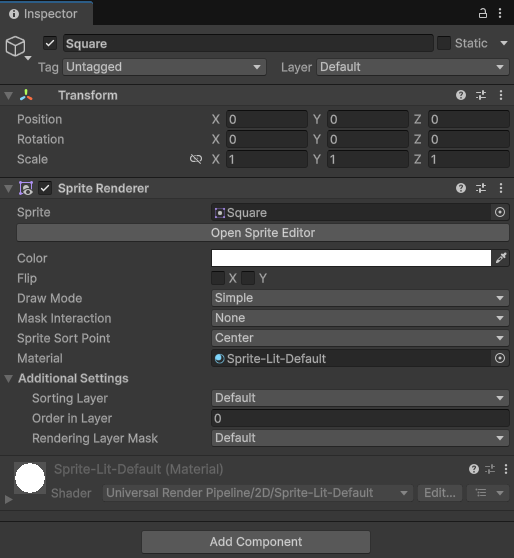
All game objects will contain a Transform component. This component defines the position, rotation and scale of a game object. We can also use this component in scripts to get more information about our game object, such a the game object’s parent.
Additionally, we will notice that the game object contains a Sprite Renderer component. If we toggle on and off the check mark next to the component name, we will notice that this hides your square. This is because the Sprite Renderer component handles rendering (making visible) our square shape. Like the Transform component, the Sprite Renderer component contains a number of properties. These include the Sprite you are rendering as well as the Color of your sprite. You can think of a sprite as an image.
Unity contains many components that we can add to our game objects to change their behavior. We can also create our own components in Unity by creating MonoBehavior scripts.
Adding Unity Components
Components can be added to our game object either by using the Add Component button or by dragging a MonoBehavior script onto our game object in the Heiarchy, Scene, or Inspector window.
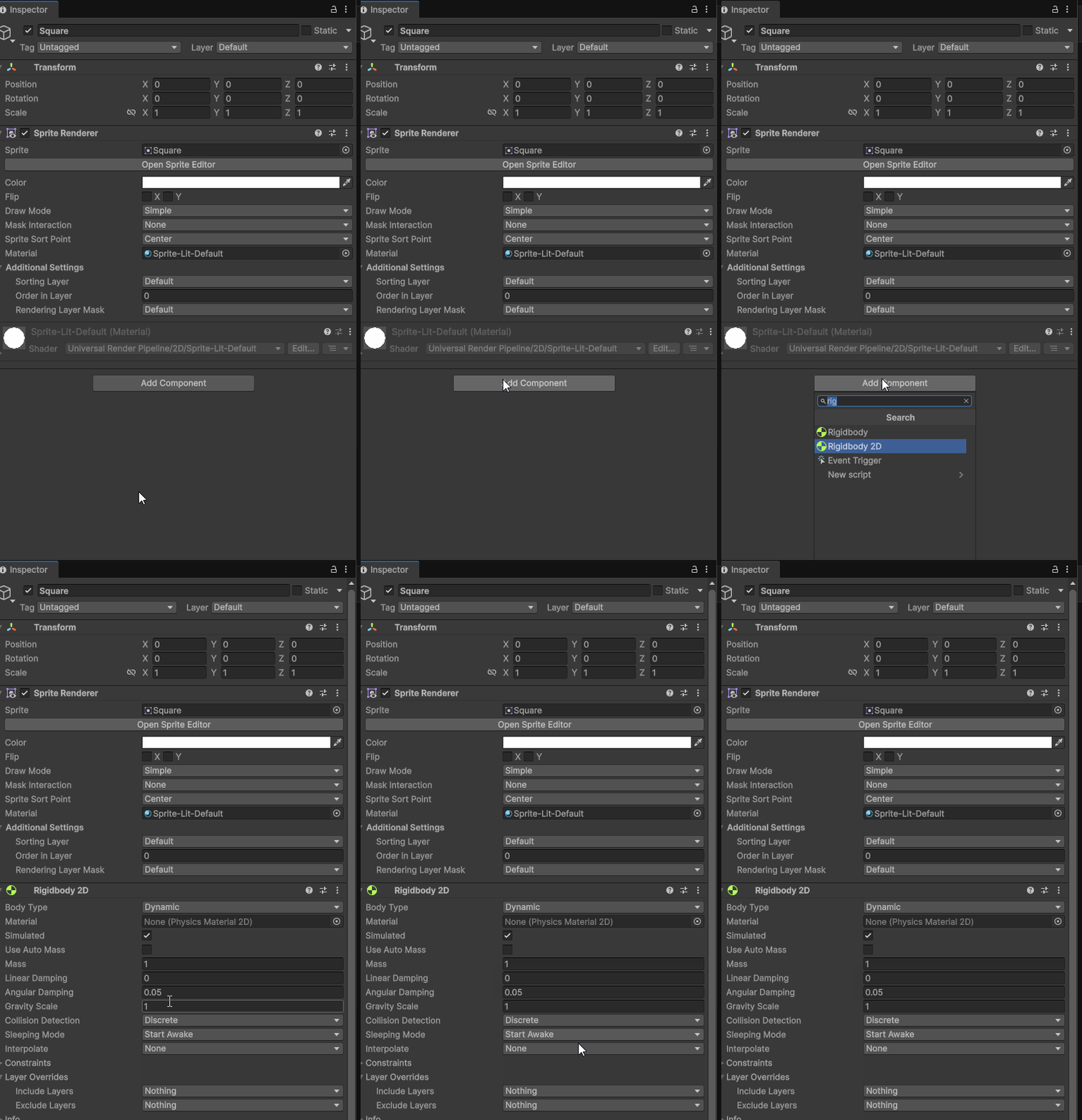
Creating MonoBehavior Scripts
When using Unity, the main form of script we will be working with is a MonoBehavior script. This is the base class from which most Unity scripts derive. By inheriting form the MonoBehavior class when making our scripts within Unity, we gain access to a variety of properties and methods that we can use in our code.
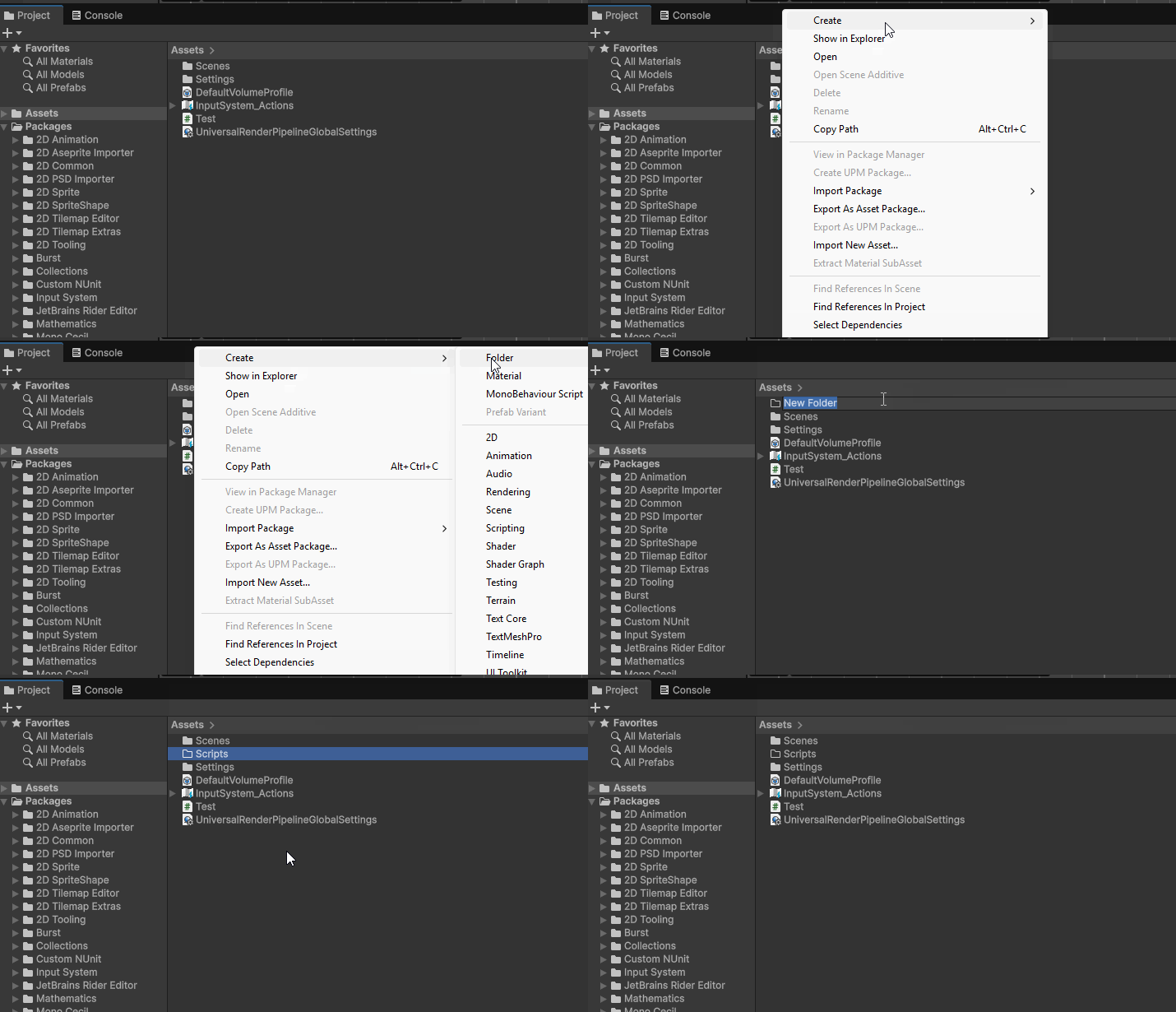
To create a MonoBehavior script, lets begin by creating a folder that will contain our scripts. Navigate to your Project window and the Assets folder. Right Click and choose Create > Folder. Name the folder “Scripts”.
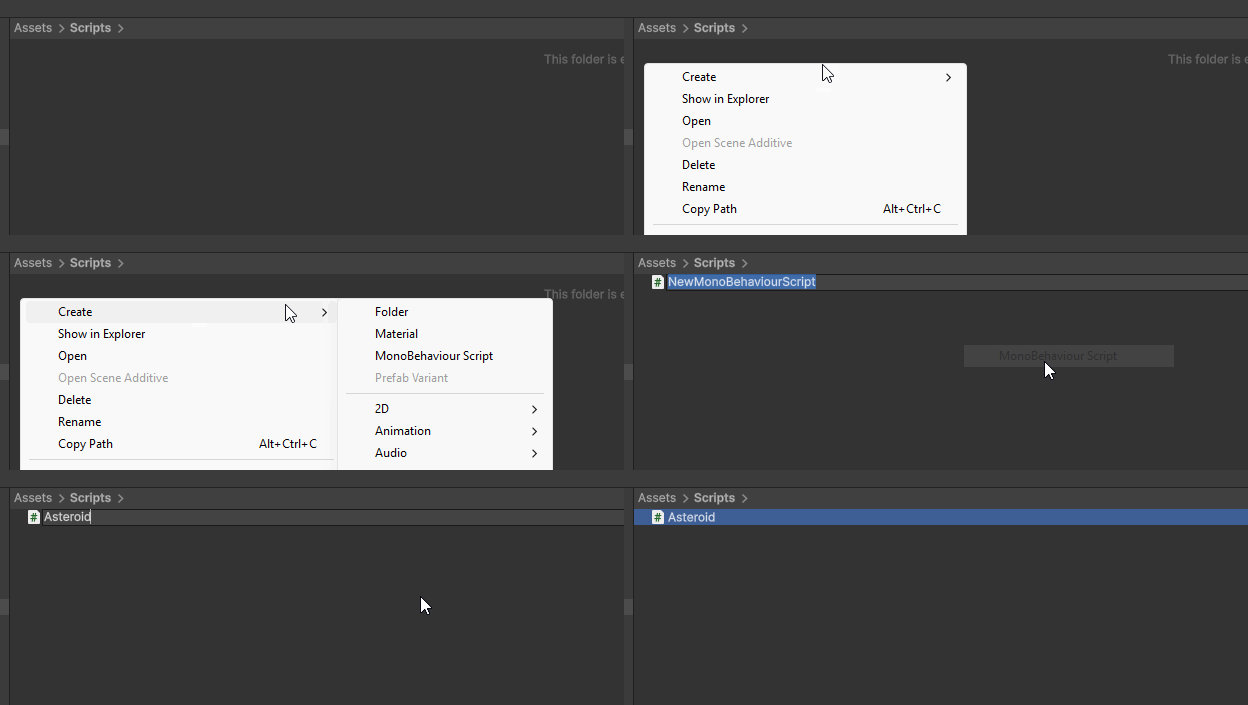
Navigate to the folder and the right click and choose Create > MonoBehavior Script. Importantly, immediately type the name you want for your script. Changing the name of your script after creation requires additional steps. Let’s name our script “Asteroid”. This script will define the behavior our our asteroid objects.
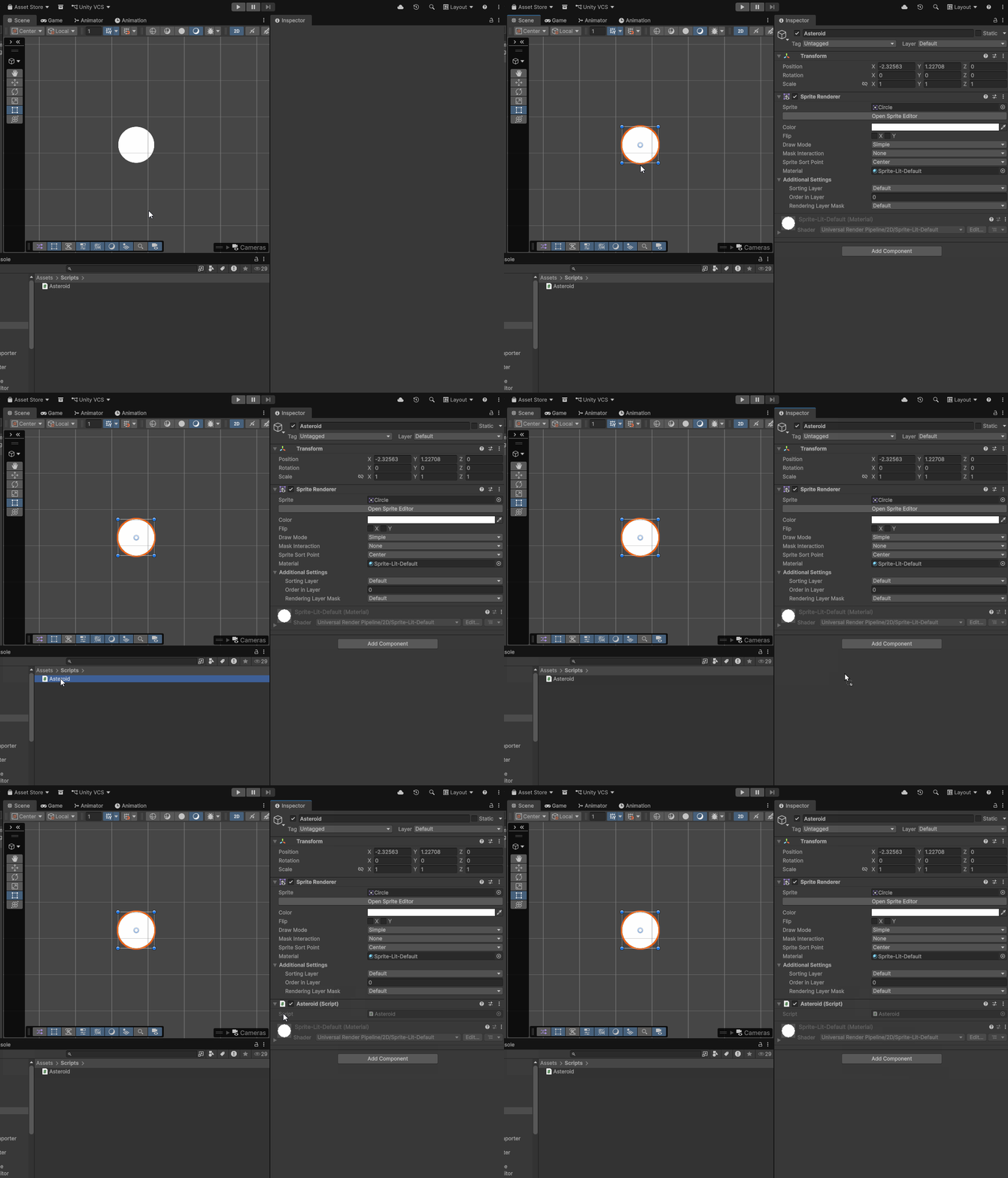
To add our MonoBehavior Script to a Circle game object:
- Create a circle by navigating to GameObject > 2D Object > Sprites > Circle
- Rename the circle to Asteroid.
-
Click and drag our newly create Asteroid Script into the Inspector window with our Asteroid game object selected.
Opening a Script
To edit a script, we first need to open the script in an integrated development environment (IDE). To open a script, double click on the script in your Project window. This should open the IDE associated with Unity, typically Visual Studio Community or Visual Studio Code.
Anatomy of a MonoBehavior Script
After opening your Asteroid script, you should see this code within your IDE.
using UnityEngine;

public class Asteroid : MonoBehaviour
{
    // Start is called once before the first execution of Update after the MonoBehaviour is created
    void Start()
    {

    }

    // Update is called once per frame
    void Update()
    {

    }
}
Namespaces
At the top our script, we can see the different namespaces our script is using. This is designated with the key word using. Namespaces are similar to libraries in other languages. They allow us to get access to different code that we can use in our script.
using Unity Engine;
Class Declaration
Below our library, we can see our class declaration. Notice that the class name is the same name as the script we created with the Unity Editor. If you want to change the name of your script you need to change both the class name as well as the name of the script in the editor.
public class Asteroid : MonoBehaviour
{

}
We can also see that our Asteroid class inherits from the MonoBehavior class.
Methods
By default, all MonoBehavior scripts are created with two methods Start() and Update(). As the comments in the scripts suggest, Start() runs when we begin our game and Update() runs every frame.
Debugging
We can test Start() and Update() by adding some debug messages to each method and looking at the result within our Console in Unity. The Console window is next to the Project window within the editor.
To create a debug message, use the class Debug and the method Log().
void Update()
{
    Debug.Log("Updating...");
}
Press the play button within the Editor to see the message print every frame.