Getting Components, Transform, and Time
Now that we have an Asteroid MonoBehavior Script that has speed and direction variables and a method called Move(), let’s add some logic to our script to actually move our asteroid.
Getting Components
One method to move our asteroid is to change the values within the game object’s Transform component during runtime. If I click and drag on the x value of my position property with the Transform component, we can see that the asteroid appears to move across the screen.
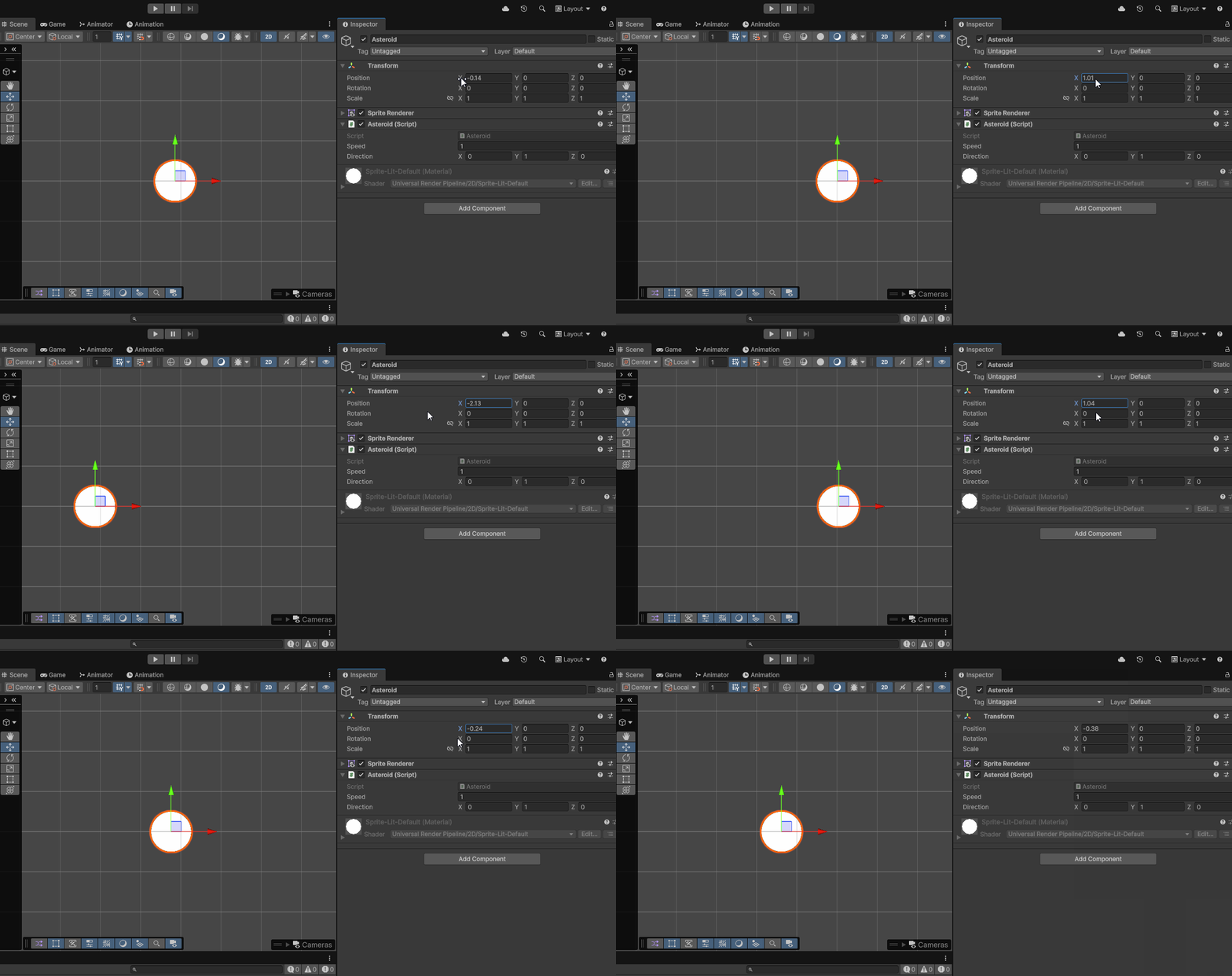
The question is how do we get access to this x value within our asteroid script in order to move our game object. The first step is to get access to our transform component.
Public Variable and Drag and Drop
One method to get access to our Transform component is to create a public variable of type Transform within our Asteroid script.
public Transform asteroidTransform;
This will expose our asteroidTransform variable within our Inspector, allowing us to drag our Transform component into the empty slot.
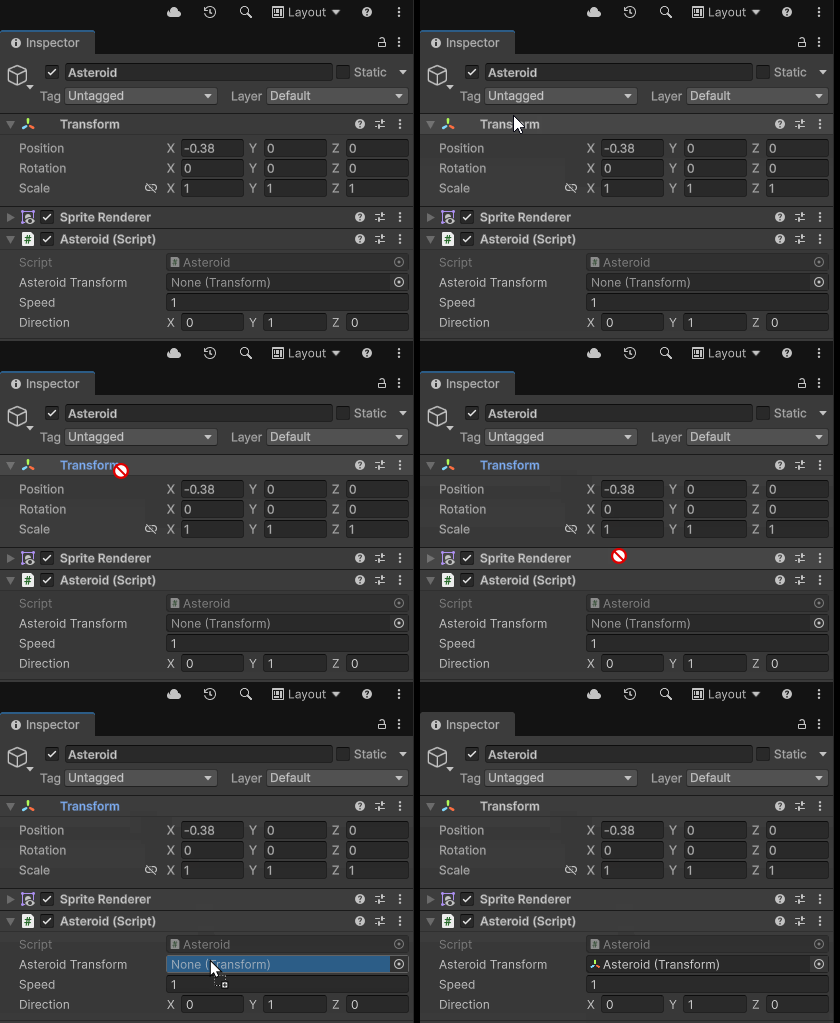
Within our code, we can then use the newly create variable asteroidTransform to move our game object. The public drag and drop method is especially helpful when we want to reference components on other game objects, however, since our script is trying to access a component on which the script is attached, we can avoid the public method which can lead to errors if we forget to drag in a value for the variable.
gameObject.GetComponent<>()
When trying to get a component on a game object, we can instead use the method GetComponent(). It is best to call this method in the Start() function to assign the variable once our game has begun playing. To use the GetComponent<>() function, we optionally first need to get access to the game object to which the script is attached. To do that, we can use the variable gameObject.
public class Asteroid : MonoBehaviour
{
    Transform asteroidTransform;

    void Start()
    {
        asteroidTransform = gameObject
    }

...
We can the use the dot modifier (.) to call the method GetComponent<>() on our gameObject
void Start()
{
    asteroidTransform = gameObject.GetComponent<>();
}
Lastly, notice that the GetComponent method uses a special syntax of an open and closed carrot bracket (< >). Within these brackets, we state the type of component we are trying to get. In our case, this is the Transform component.
void Start()
{
    asteroidTransform = gameObject.GetComponent<Transform>();
}
Now our full Asteroid script should look like this:
using UnityEngine;

public class Asteroid : MonoBehaviour
{
    public Transform asteroidTransform;
    public float speed = 1f;
    public Vector3 direction = new Vector3 (0f, 1f, 0f);

    void Move()
    {

    }

    void Start()
    {
        asteroidTransform = gameObject.GetComponent<Transform>();
    }

    void Update()
    {

    }
}
Get Transform Component
Since every game object needs to contain a Transform, the transform component also has a special syntax we can call to get access to the Transform component. Instead of using GetComponent we can also just call the key word transform to get access to the Transform component. We will be using this later on in the course, but for now, let’s be explicit about where and how we are getting the value of our transform component.
Transform Component
The Transform component is used to store and manipulate the position, rotation and scale of objects. As you can see from the Unity reference, the Transform component contains a variety of properties and methods we can get access to manipulate our object.
For example, if we wanted to print the position of our asteroid to our console, we can add the following code to our update function:
Debug.Log(asteroidTransform.position);
Translate()
Since we want to move our asteroid, one method that we can use is the Translate() function. Looking at the Unity scripting API, we can see that the function takes in a Vector3 and transforms the position of our game object along this axis.
As a reminder, Vector3 is just a way to store a line from the origin to a given (x,y,z) value. Therefore, a value such as (0,1,0) would be a line extending from the origin up one unit with a length of one. Within Unity, the Y axis is the up direction. Since we are currently working in 2D we only need to concern ourselves with the first two values of x and y.
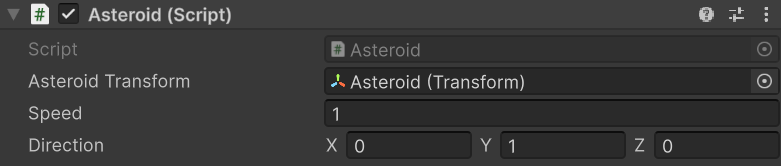
To move our asteroid up one unit per frame, let’s first make sure the value of our direction in our inspector is equal to the up vector.
Next, let’s add some code to our Move() function to translate our game object along this vector.
void Move()
{
    asteroidTransform.Translate(direction);
}
Finally, let’s call Move() within Update()
void Update()
{
    Move();
}
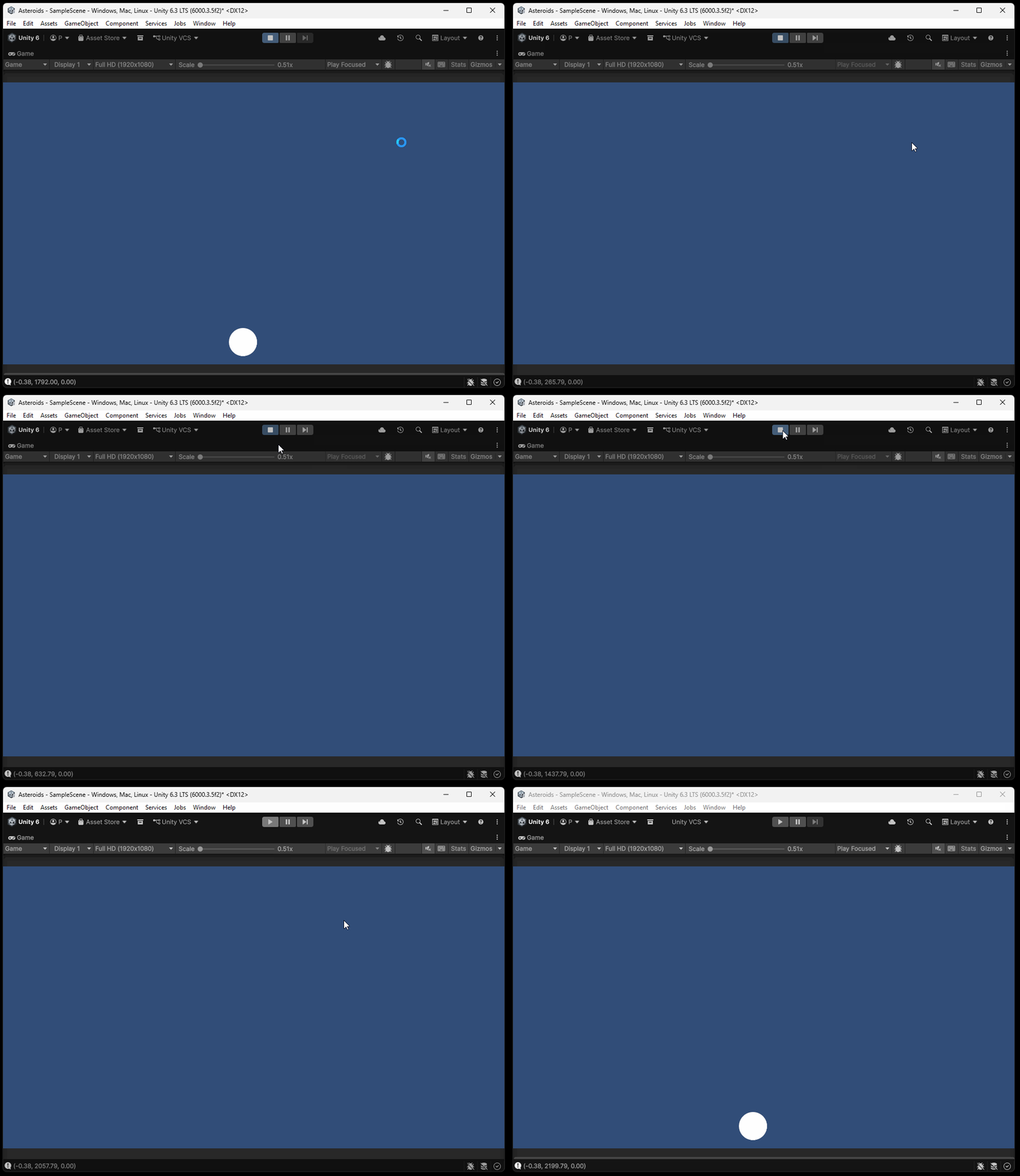
We will notice that our asteroid moves far to fast. Since we are dealing with such a simple scene, on modern gaming hardware, this scene might run at 500 frames per second. Since our object is moving 1 unit per frame, as a result, our asteroid is moving around 500 units per second.
Time.deltaTime
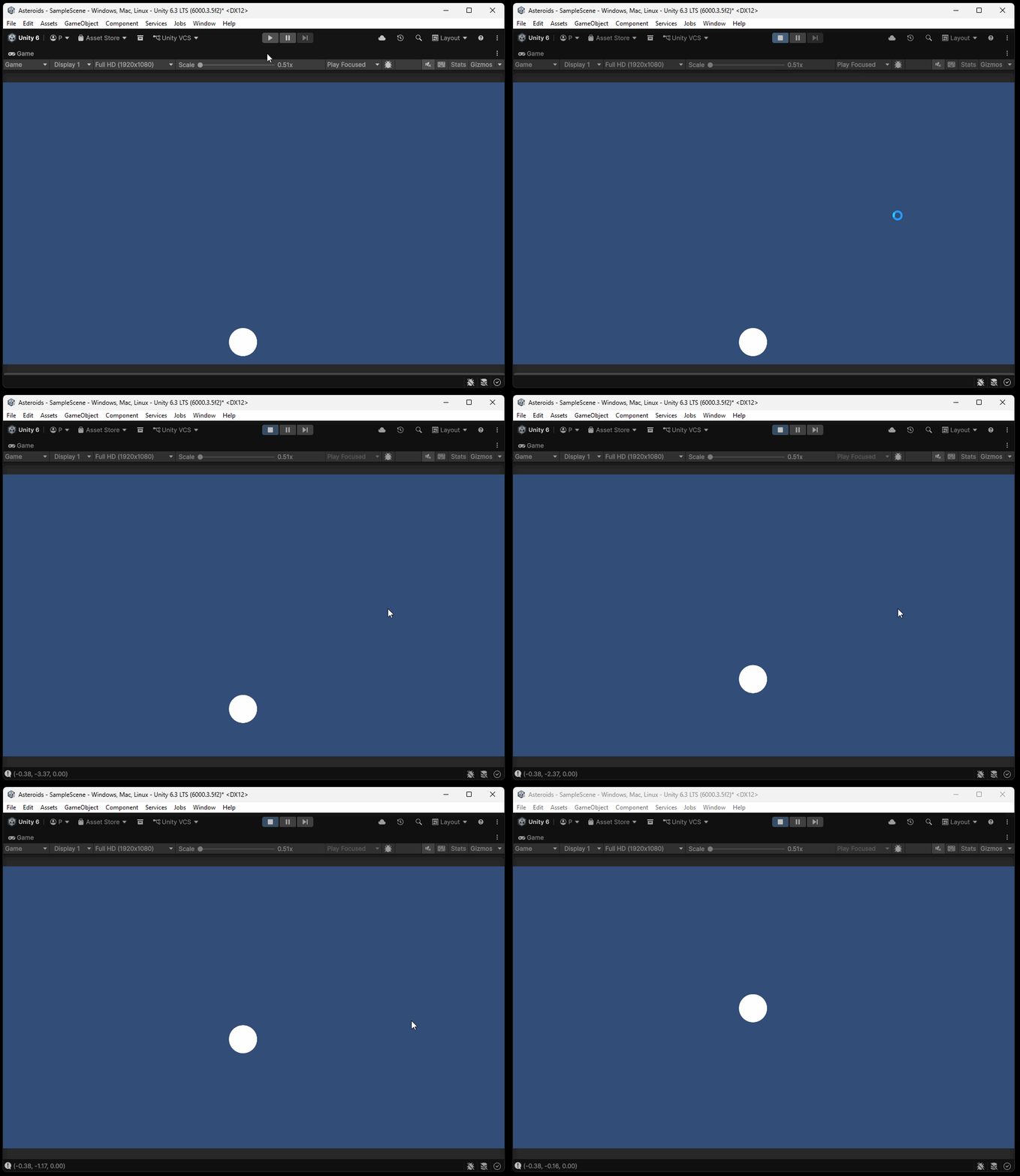
To slow down our object so that it moves one unit per second as opposed to per frame, we can multiply our direction value by Time.deltaTime. The float value exists within the Time interface within Unity, which stores various information about time within our game. deltaTime is the time in seconds from the last frame to the current frame. By multiplying our direction by this value, we will only move our asteroid a fraction of a unit per frame, allowing the object to move a full unit within one second. We can additionally multiply our direction by speed to change how many units our asteroid is moving per second.
void Move()
{
    asteroidTransform.Translate(direction*Time.deltaTime*speed);
}
Vector3.normalized
One thing to keep in mind is that we are currently translating our object on a vector with a length of one. If, for example, we wanted to translate our object along a vector moving diagonally up and right (1,1,0), we can notice that this vector has a length of square root of 2 or about 1.414.

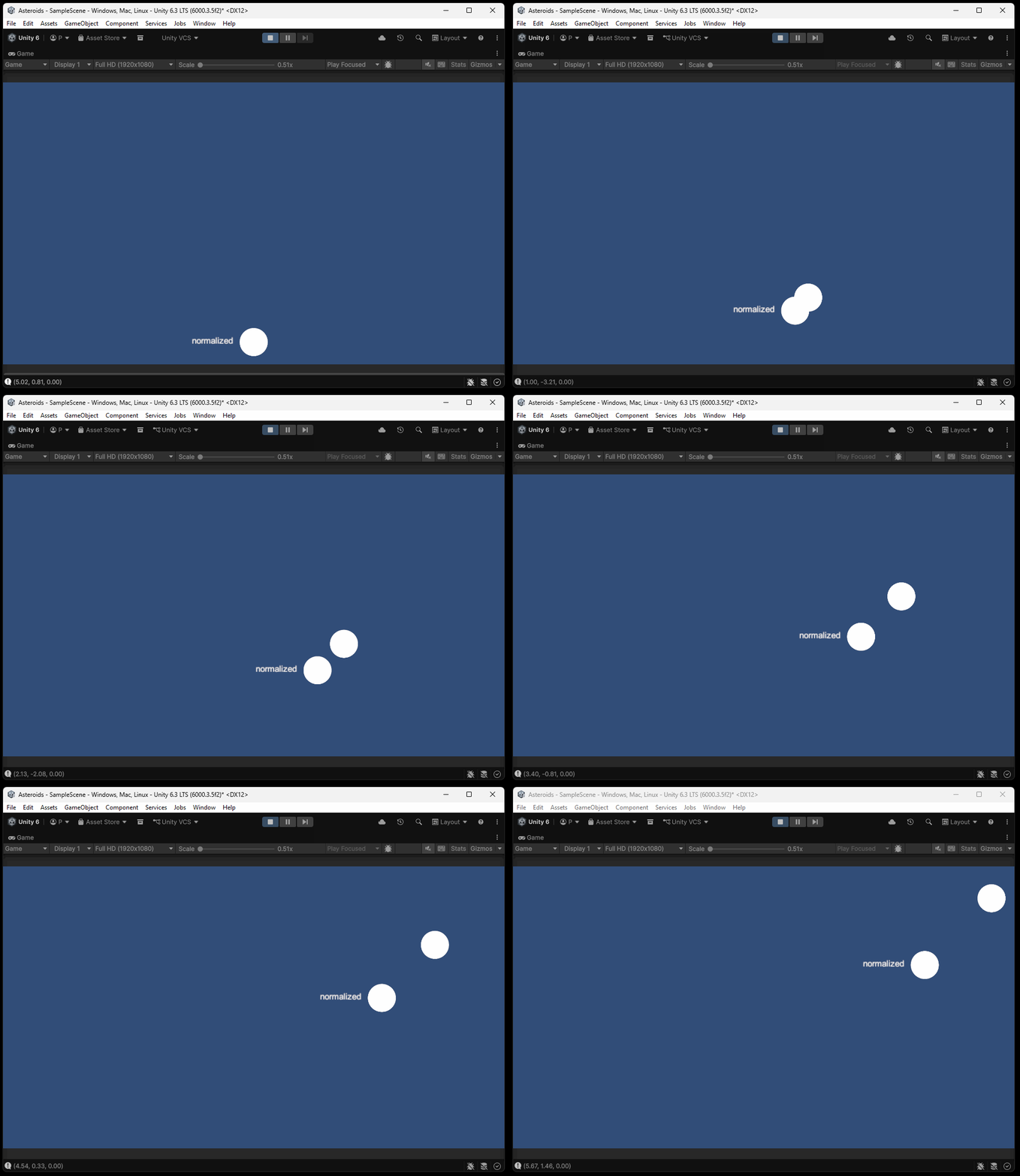
By using .normalized on any vector, this gets the unit vector (a vector with the length of one) based on the direction of the vector. By calling direction.normalized within our Translate() function, all our direction vectors will be normalized, allowing for our asteroid to always move at the speed specified by our speed variable.
void Move()
{
    asteroidTransform.Translate(direction.normalized*Time.deltaTime*speed);
}
Below you can see the difference in speeds of an asteroid with a normalized vector versus a non-normalized vector.
Duplication
Now that we have one asteroid moving on our screen, let’s duplicate our asteroid 4 times to create a total of 5 asteroids. To duplicate an asteroid, you can select the game object in the Hierarchy or Scene window and press Ctrl+D or Right click > Duplicate. This will create a copy of your asteroid.
We can then independently edit the speed and x,y direction values of each asteroid.
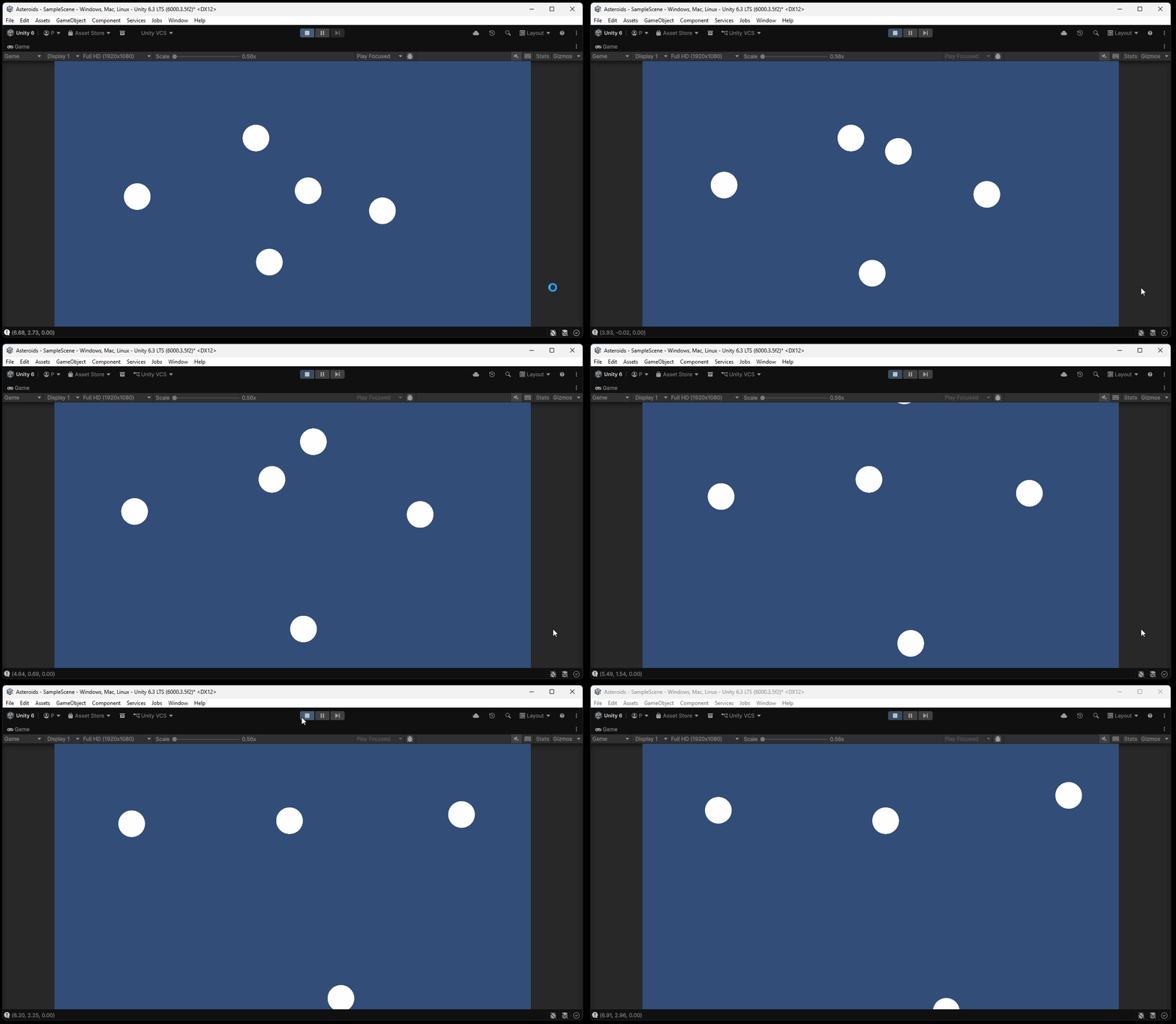
Below you can see the result of creating 5 asteroid that move in different directions at different speeds.