Camera
Camera
Within Unity, our game is captured by a camera. You can see the camera component in your Hierarchy, typically named Main Camera.

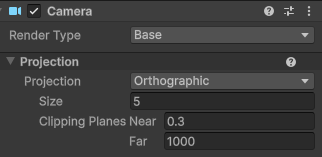
By selecting on our Main Camera, we can access the camera’s Camera component. Since we are currently making a 2D game, we can see that we are using an orthographic camera, or, in other words, a camera without perspective distortion.
Size
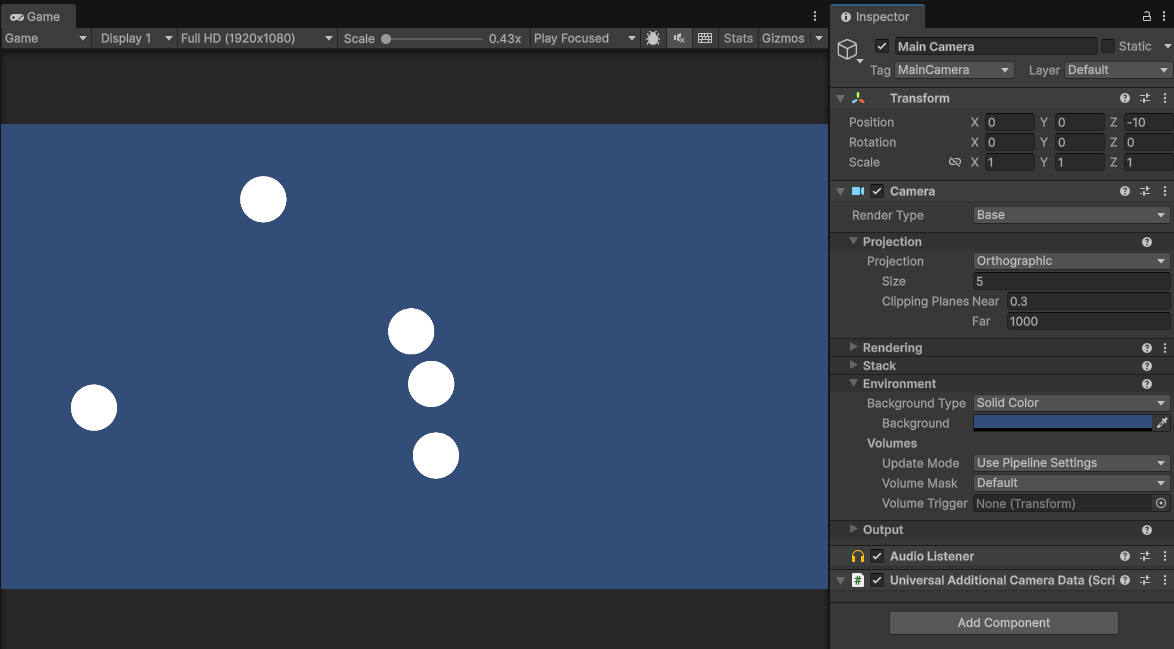
We can also notice that size of our Camera is 5. What this essentially means is that the height of camera goes from 5 to -5 in world units on the y axis.
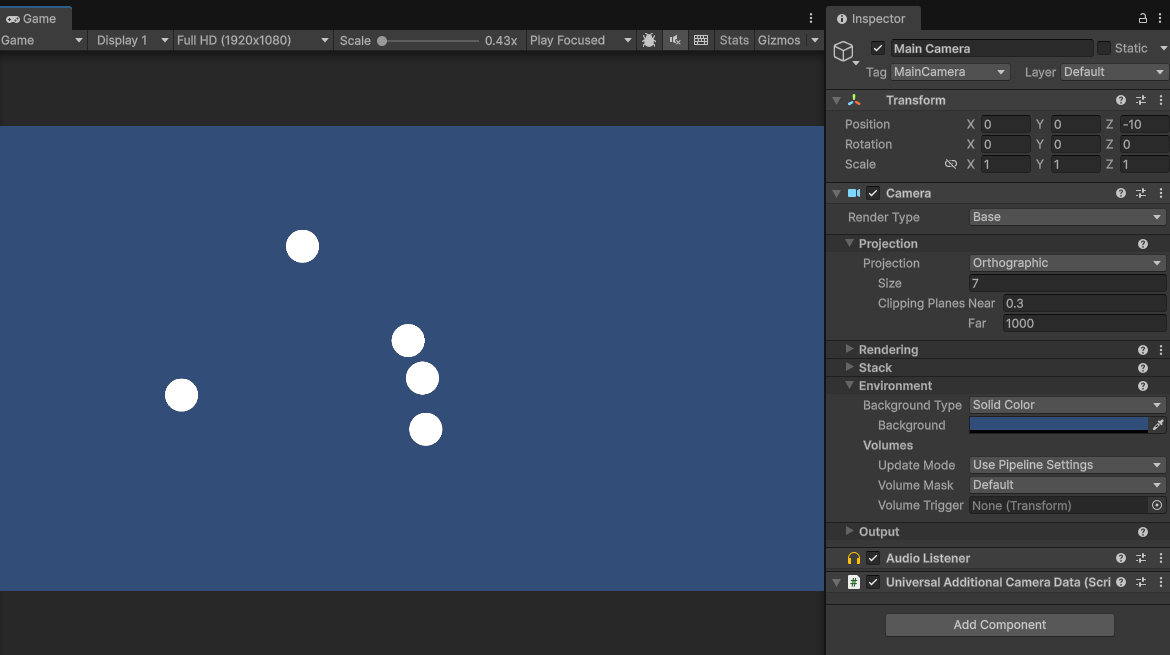
If we change our Size to 7, out camera will now be bounded to a height of 7 and -7, resulting in our circles appearing smaller, affectively pulling back the camera from our scene:
Camera Size 5:
Camera Size 7:
Background
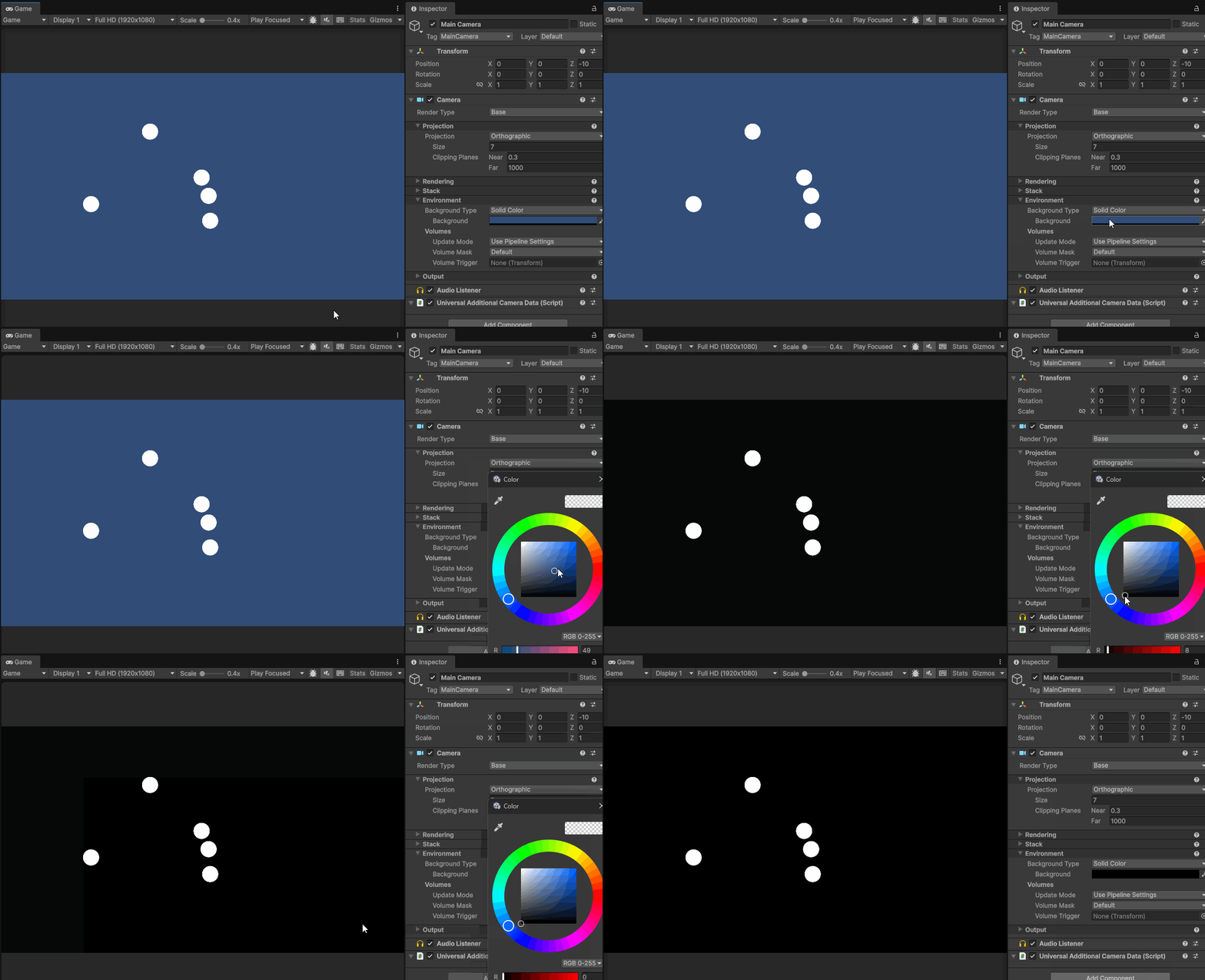
Under the environment tab, we can also change the background color our game view. Lets set our background color to black.
Screen Wrapping
Screen Size
Currently, if we play our game we notice that our asteroids fly off the screen, never to return. In the original version of the game, once the asteroids pass beyond the edge of the screen, they appear on the opposite edge. Since we know the bounds of camera in world units from the Size property, we can check to see if an asteroid rigid body passes beyond the edge of the screen and then send it to the opposite side.
Since, objects such as the player will also wrap around the screen, lets create a generic ScreenWrap script that can be used on a variety of objects.
Creating ScreenWrap Script
Begin by making a new script called ScreenWrap. Add this script to all of your asteroids.
Within the script, add global float variables for screenWidth and screenHeight. We will used these variables to store the width and height our screen.
public class ScreenWrap : MonoBehaviour
{
    float screenWidth;
    float screenHeight;

...
To get the width and height of our game screen we need to look at the size of our Camera. As mentioned above, the Size property of our camera states the positive and negative bounds our camera on the Y axis. With a value of 5 for Size, for example, our camera would go from -5 to 5 on the Y axis and thus have a height of 10.
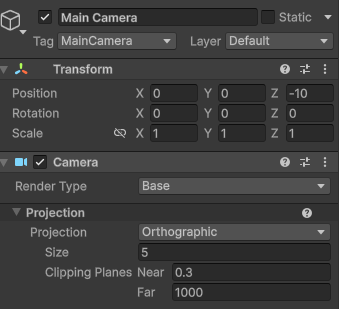
Looking at the Camera component on our Main Camera, we can notice that camera has a Tag of MainCamera. We’ll discuss tags in more detail later in the course. For now, its important to know that MainCamera is a special tag within Unity. The object in our scene tagged with MainCamera is accessible in any script by using the keyword Camera.main.
Since we know that the height of our screen is equal to the Size of our camera multiplied by 2, we can set the variable screenHeight equal to the Camera.main.orthographicSize * 2. We’ll do this in Update() so the screenHeight variable can change as the player changes the size of their window.
public class ScreenWrap : MonoBehaviour
{
    float screenWidth;
    float screenHeight;
    void Update()
    {
        screenHeight = Camera.main.orthographicSize * 2;
    }
}
Aspect Ratio
To get the width of our screen, we first need to understand the aspect ratio of our Unity game. If we look at the top of our game window we can see a drop down that either says Free Aspect or displays a particular resolution such as Full HD (1920x1080). It is best practice to keep your game at specific aspect ratio, so make sure it is set to Full HD (1920x1080). This will simulate of our game view to be 1920 pixels wide by 1080 pixels tall. This is an aspect ratio of 16:9.
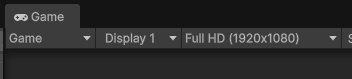
Once we have our screen height and aspect ratio, we can calculate the with our our screen. Our screenWidth with be equal to Camera.main.orthographicSize * 2 (the height of our screen), multiplied by our aspect ratio, which we can get using Camera.main.aspect.
public class ScreenWrap : MonoBehaviour
{
    float screenWidth;
    float screenHeight;
    void Update()
    {
        screenHeight = Camera.main.orthographicSize * 2;
        screenWidth = Camera.main.orthographicSize * 2 * Camera.main.aspect;
    }
}
Wrapping the position of our rigid body
Lastly we need to get our rigid body, and check if it has passed beyond the edge of the screen. To do this, we will first create a rBody variable to store our RigidBody2D.
public class ScreenWrap : MonoBehaviour
{
    float screenWidth;
    float screenHeight;
    Rigidbody2D rBody;

    void Update()
    {
        screenHeight = Camera.main.orthographicSize * 2;
        screenWidth = Camera.main.orthographicSize * 2 * Camera.main.aspect;
    }
}
Then, in Start(), we will assign a value to our rBody using the GetComponent() method.
private void Start()
{
    rBody = GetComponent<Rigidbody2D>();
}
Lastly, we need to check if the position of our rigid body is beyond the edge of the screen. We can do this by check if either the x or y value of our rigid body position is beyond the edge of the screen. To get the value of the edge of the screen we can multiply either screenWidth of screenHeight by 2 and either keep it positive to get the positive bound, or multiply it by -1 to get the negative bound. To check if the rigid body is beyond any of the 4 edges of the screen, we can use 4 if statements. We also use a generic Vector2 variable to hold our rigid body position and then set the position of our rigid body using this variable after running through all of the if statements.
using UnityEngine;

public class ScreenWrap : MonoBehaviour
{
    float screenWidth;
    float screenHeight;
    Rigidbody2D rBody;

    private void Start()
    {
        rBody = GetComponent<Rigidbody2D>();
    }
    void Update()
    {
        screenHeight = Camera.main.orthographicSize * 2;
        screenWidth = Camera.main.orthographicSize * 2 * Camera.main.aspect;

        float heightEdge = screenHeight / 2;
        float widthEdge = screenWidth / 2;
        Vector2 position = rBody.position;

        if(position.y > heightEdge)
        {
            position.y = -heightEdge;
        }
        if (position.y < -heightEdge)
        {
            position.y = heightEdge;
        }
        if (position.x > widthEdge)
        {
            position.x = -widthEdge;
        }
        if (position.x < -widthEdge)
        {
            position.x = widthEdge;
        }

        rBody.position = position;
    }
}
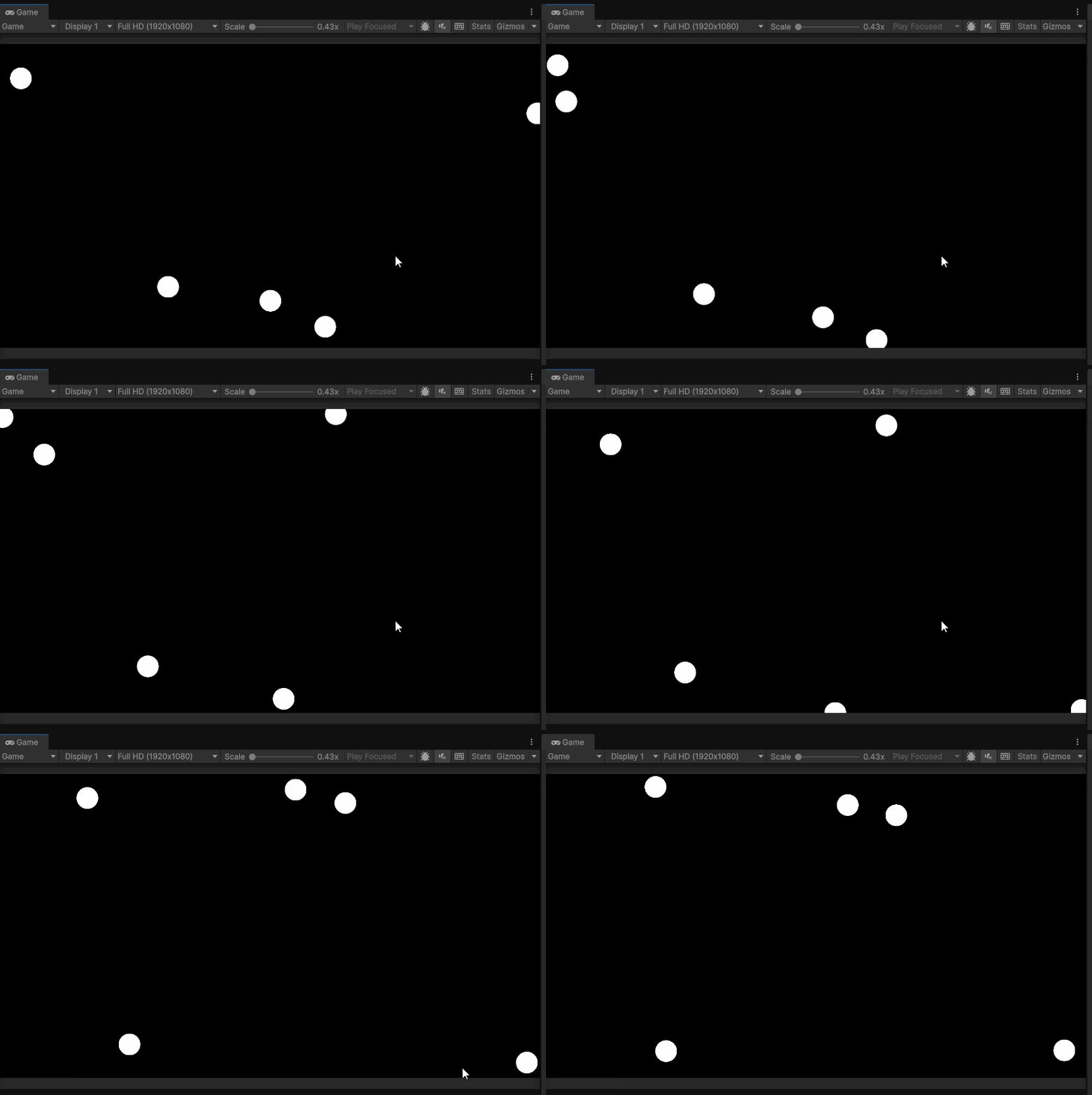 Playing the game, we notice that circles pop in and out of the frame instead of smoothly exiting and entering. To fix this, we can add a small margin to the edges of our screen so the asteroids go beyond the edge of our screen before moving to the other side. To do this we will create a
 float variable called wrapMargin and set it to a small value such as .5. We’ll make it public so that we can change the value based on the size of the object.
public float wrapMargin = .5f;
Next, we can add this wrapMargin to our screenWidth and screenHeight.
screenHeight = Camera.main.orthographicSize * 2+ wrapMargin;
screenWidth = Camera.main.orthographicSize * 2 * Camera.main.aspect + wrapMargin;
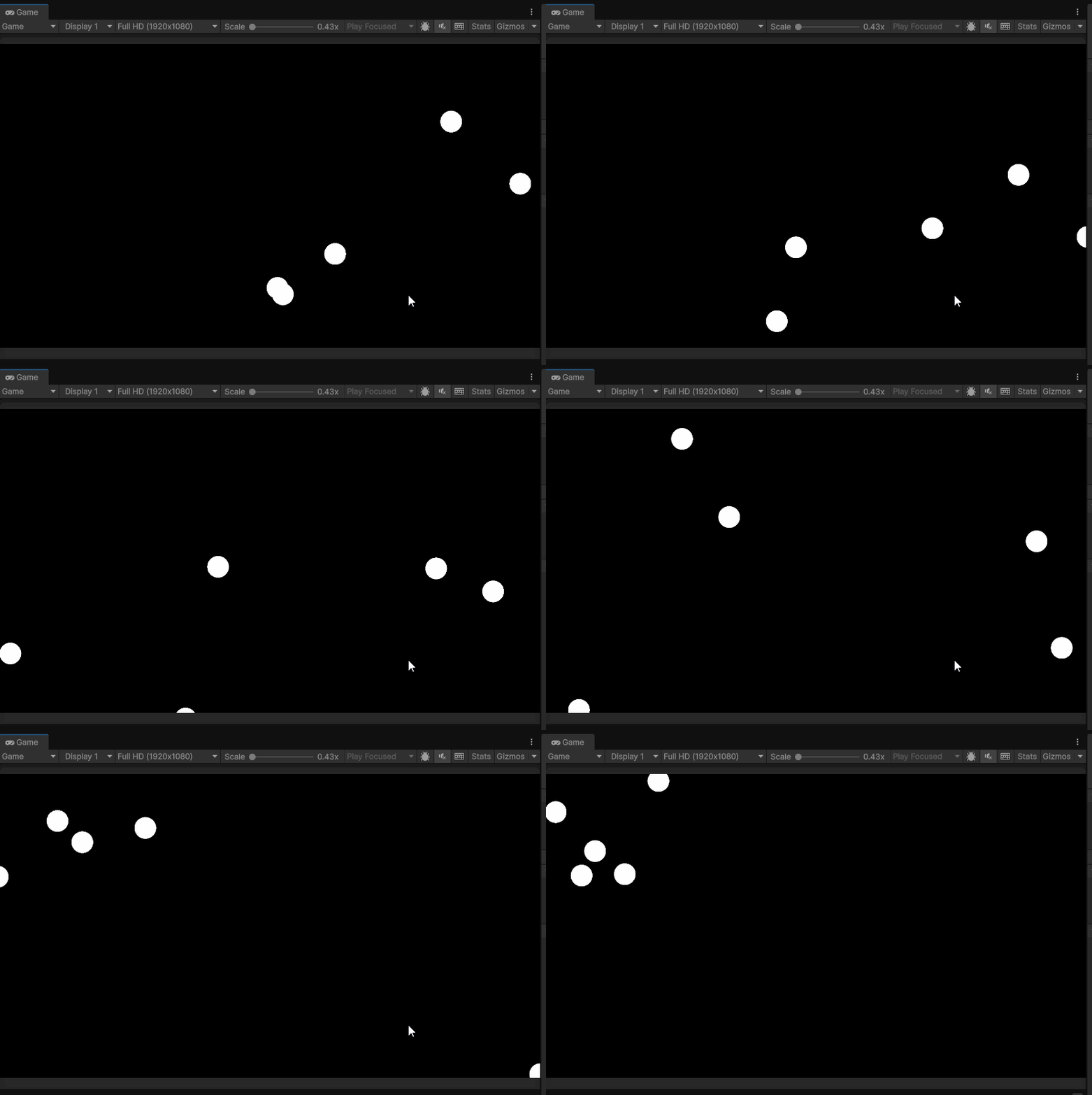
Our final ScreenWrap.cs file:
using UnityEngine;

public class ScreenWrap : MonoBehaviour
{
    float screenWidth;
    float screenHeight;
    Rigidbody2D rBody;
    public float wrapMargin =.5f;

    private void Start()
    {
        rBody = GetComponent<Rigidbody2D>();
    }
    void Update()
    {
        screenHeight = Camera.main.orthographicSize * 2+ wrapMargin;
        screenWidth = Camera.main.orthographicSize * 2 * Camera.main.aspect + wrapMargin;

        float heightEdge = screenHeight / 2;
        float widthEdge = screenWidth / 2;
        Vector2 position = rBody.position;

        if(position.y > heightEdge)
        {
            position.y = -heightEdge;
        }
        if (position.y < -heightEdge)
        {
            position.y = heightEdge;
        }
        if (position.x > widthEdge)
        {
            position.x = -widthEdge;
        }
        if (position.x < -widthEdge)
        {
            position.x = widthEdge;
        }

        rBody.position = position;
    }
}