Game Manager and Singletons
Currently our project exists as an interesting asteroid destroyer prototype, but doesn’t consist of any game logic. While win states, lose states, etc. are not required to make an interactive media art work, in this tutorial we will explore how to implement a game loop to learn about management scripts and the singleton programming pattern.
Game Programming Patterns
Game Programming Patterns Resource
Unity Design Patterns (Although this site has all of the hallmarks of being vibe coded, the information for each pattern is a great introduction.)
A programming pattern is a way of structuring code to solve a software design problem. The easiest way to think about programming patterns is as tools at your disposal to structure your code. There is never one solution for every project, and often times projects might include multiple programming patterns. Most likely, your project will consists of a collection of design patterns and custom systems. Its important to note that you don’t need to know what programming pattern you will use when starting a project. Often times we restructure our projects to make them simpler and more adaptable after our initial prototypes. This process is called refactoring.
While perhaps taken over by the silicon valley ethos of “move fast and break things,” designing to get things working and then reworking projects to be easier to understand and more scalable can be found across many types of media production. We can think of it as a process of initially sketching an idea, and then coming back to refine the details. This will become more relevant when you begin working on your own projects and when we discuss your design approaches. For now, we are going to focus on a single pattern, the singleton pattern.
The Problem
Within our Asteroids game, we are able to move our ship around and destroy Asteroids. However, as mentioned above, this game does not contain a game loop. In many arcade games of the 1970’s and 1980’s, when designers were still figuring out what a video game is, game loops were rather simple compared to today’s complex systems. Avoid a thing, hit a thing, etc. Pong’s infamous game loop: “AVOID MISSING BALL FOR HIGHSCORE.”
The game loop of Asteroids consists of waves of Asteroids. When a wave of asteroids are destroyed, a new wave of asteroids is created. Players attempt to destroy as many asteroids as possible within three chances.
The design problem we need to solve is that while we know when a single asteroid is destroyed (within the OnTriggerEnter2D function of our Asteroid.cs file), we currently do not have a way to track the total number of asteroids and keep track of their status.
Considering different design patterns, there are many ways to approach this problem. Our approach will be to use a single script that will manage the logic of our game. This script will be in charge of both spawning asteroids and keeping track of their status. Since all of the asteroids will need to communicate with this script, this script has to be accessible within other code files.
To achieve this, we can use the singleton design pattern.
Singleton Game Manager
The singleton pattern allows us to create a script that can only exist as one instance within our scene. Since it only has one instance, any script can get access to it. It acts somewhat like a local control center to which all other scripts can provide data and from which they can get data.
Creating a Singleton Game Manager
Begin by creating a new MonoBehavior script called GameManager.
Within the GameManager script we can begin by adding the variable line:
public static GameManager instance;
The important thing to note is the keyword static. Unlike other variables that belong to specific instance of a class (think of the speed variable for each asteroid), static variables belong to the class itself. We have already seen static variables within this course. For example, if we wanted to get access to a (0,0) vector, we could call Vector2.zero. In this case, we are not calling a particular instance of the Vector2 class, instead we are just calling the class itself and getting access to a static variable that exist within that class.
When we create our public static GameManager instance variable, we are creating a variable that we can call from any script by using the code GameManager.instance. We don’t need to know which instance we are calling, we can instead just call the whole class.
But what exactly are we calling? Since our instance variable is of type GameManager, we are calling a GameManager instance. Currently this is unassigned. We want to assign this variable a value of this script, or in other words, the instance of GameManager script within our scene.
To do this, let’s first create a new function called Awake(). This function is called as soon as are game starts.
public class GameManager : MonoBehaviour
{
    public static GameManager instance;

    private void Awake()
    {
        instance = this;
    }
Within this a wake function, we can set Instance to be equal to this script within our scene. To do this, we can use the keyword this. this just equals this script. Now, if we were to place this script within our scene, anytime we call GameManager.instance, in any script, we can get access to the GameManager script within our scene.
Limiting Instances
As you might be able to imagine, this code could create some serious problems down the line. As a thought experiment, imagine if we had two different GameManager scripts within our Unity scene, which one would GameManager.instance call? The answer would be rather unpredictable and it would basically matter on which instance was called most recently. Essentially, we would have an unreliable system.
As a check, we need to implement some code that will ensure that only one instance of our GameManager exists within our scene at any given point. This is the second part of the singleton game pattern.
To do this, we need to check two things every time we call the Awake() function:
- Does
instancealready exists - Is
instanceequal to this script
This way, if there are two versions of our script within the scene, after these checks, we can write some code to destroy the script if a previous instance already exists.
To check if an instance already exists we can use the line:
instance != null
null in C# is the keyword for an empty variable. Therefore, in this statement we are checking if instance is not null, or, in other words, if it has a value.
If this statement returns true, we can destroy the instance we are attempting to create. If false, we can create an instance:
public class GameManager : MonoBehaviour
{
    public static GameManager instance;

    private void Awake()
    {
        if (instance != null)
        {
            Destroy(this);
        }
        else
        {
            instance = this;
        }
    }
As a last step, we what to make sure that we are not continuously destroying the first instance we create. To do this, before destroying an instance, we will make sure that if it does exist, it is not equal to the current value of instance. Within our if statement, we can use the line:
instance != this
using UnityEngine;

public class GameManager : MonoBehaviour
{
    public static GameManager instance;

    private void Awake()
    {
        if (instance != null && instance!= this)
        {
            Destroy(this);
        }
        else
        {
            instance = this;
        }
    }
    void Start()
    {

    }

    void Update()
    {

    }

}
This code, a static instance variable and a check to make sure only one instance exists within the scene, is the simplest version of the singleton pattern we can make in Unity. The singleton pattern is one of the most useful tools within Unity as it allows you to manage large amounts of data from a single script and have complete open communication to other scripts within your scene.
For the next step in this tutorial, we will use our GameManager script to create the Asteroids game loop.
Asteroids Game Loop
To control our game loop, our GameManager script needs to control a few elements:
- Starting our game by making our player and asteroids
- Spawn our asteroids
- Keep track of when our asteroids are destroyed
- Keep track of rounds, and spawn new asteroids when all are destroyed
- Keeping track of player lives
- Restart Game when the player dies
In this tutorial, we will focus on starting our game and spawning asteroids.
Converting Asteroid and Player into prefabs
As a first step, we need to turn our asteroid and player game objects into prefabs. This will allow our game manager to instantiate our asteroid and our player in our scene. To do this, we can drag our Player and Asteroid game objects into our Project window and delete them from our scene view.
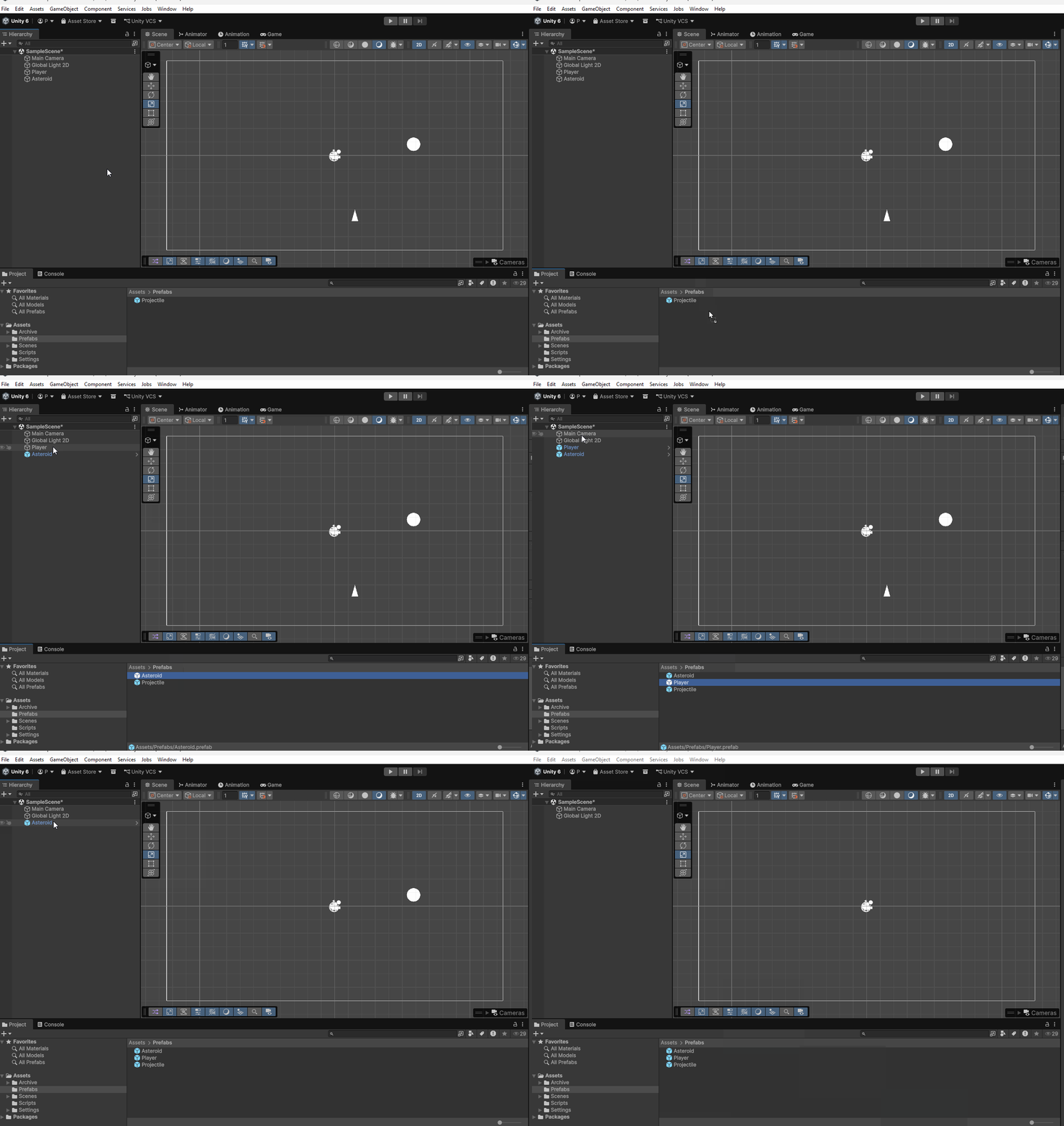
Accessing our Player and Asteroid prefabs
Within our, GameManager.cs file, we can then create variables to hold our player and asteroid prefabs:
public GameObject player;
public GameObject asteroid;
Next, we need to assign these variables values within our Unity Editor. We first need to add our GameManager script to our scene by creating a Game Manager object.
Begin by creating an Empty Object by navigating to GameObject > Empty and renaming it Game Manager:
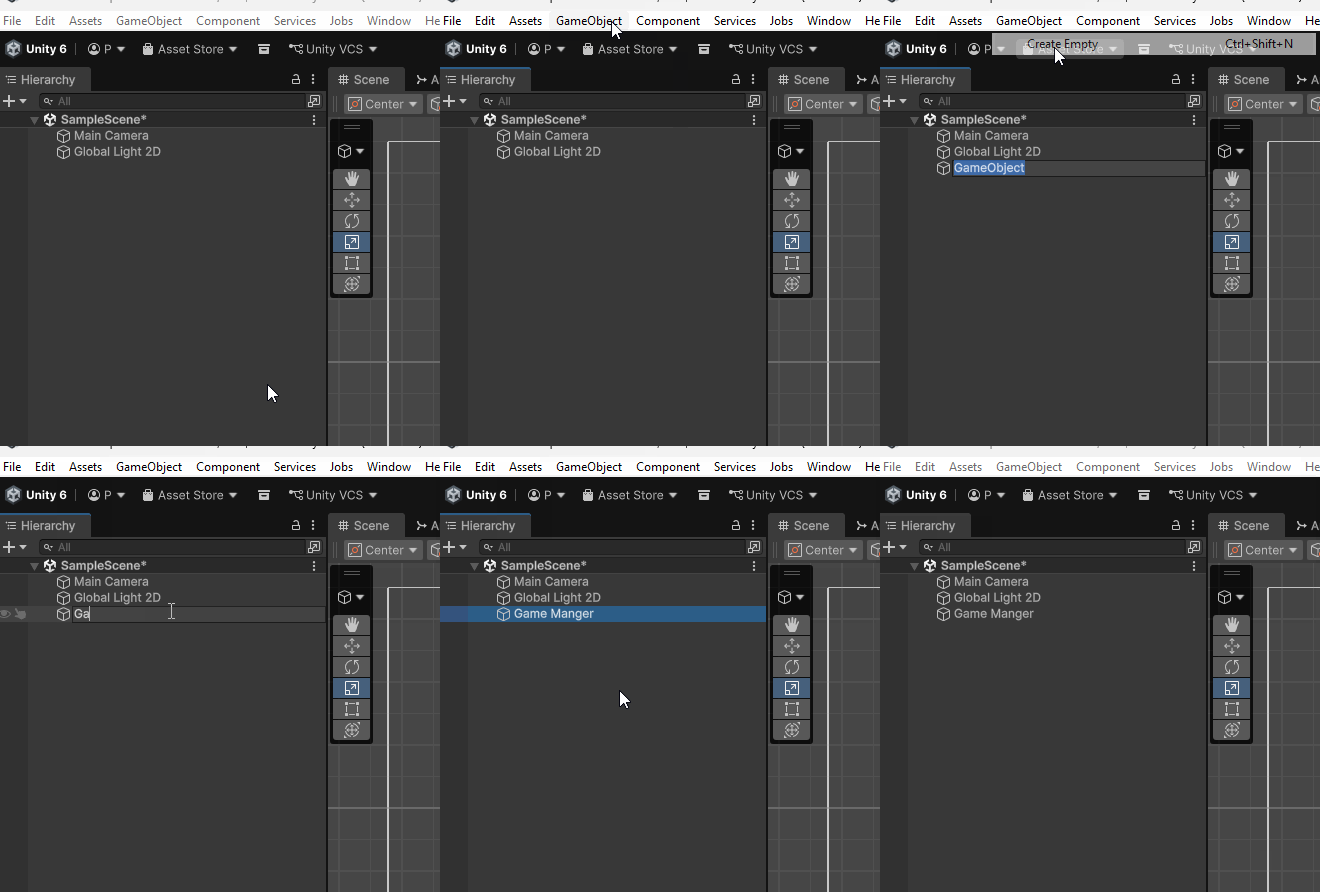
Next, we can add our GameManager script to our Game Manager object:
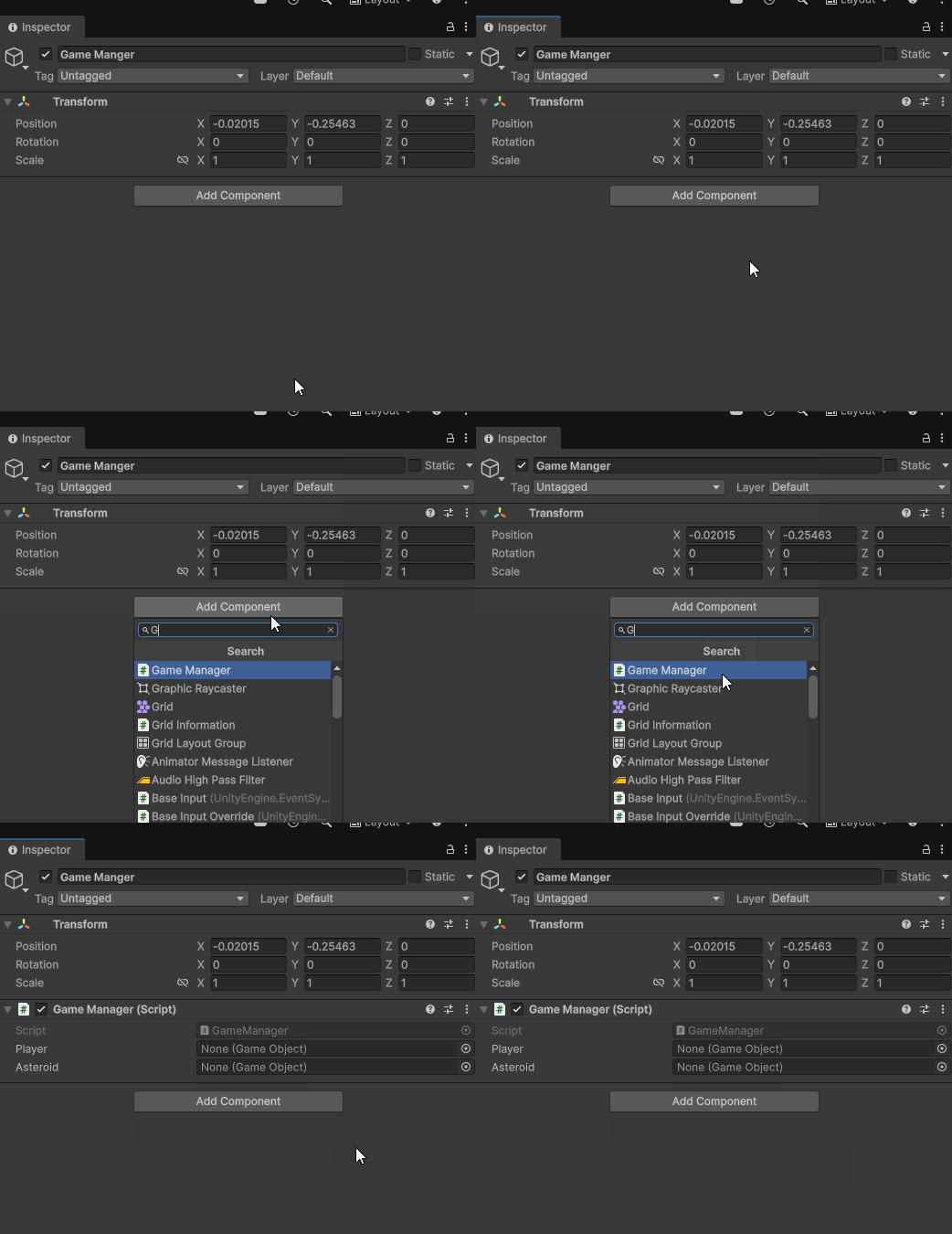
Finally, we can drag our Asteroid and Player prefab into the variable slots on our GameManager component:
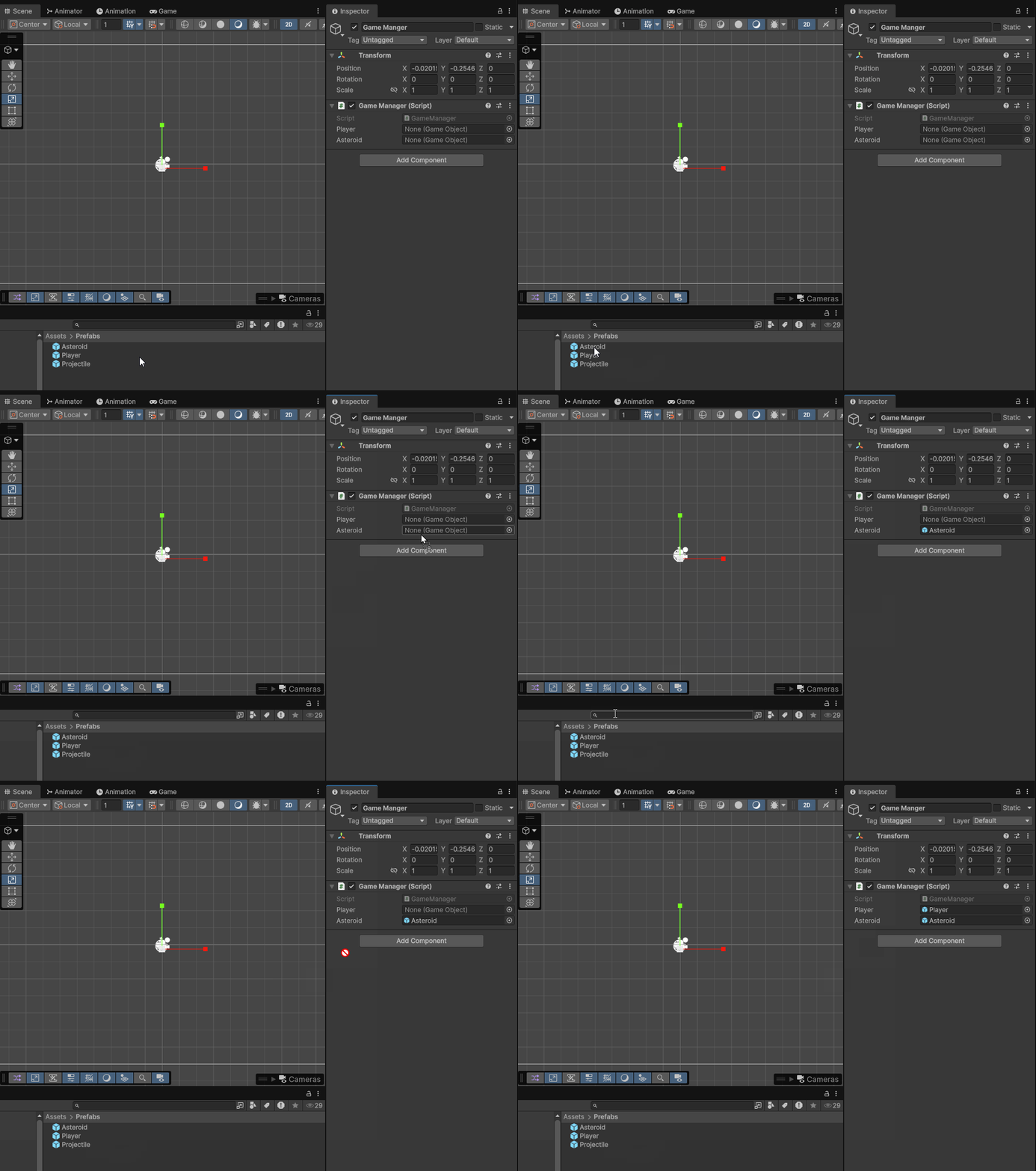
Custom Methods
Now that we have access to our Player and Asteroid prefabs, let’s write some logic so that when we start the game our Player and Asteroid appear within our scene.
Let’s start by creating three custom methods within our GameManager.cs file. These methods will handle spawning our asteroids, our player and starting our game. Let’s name these functions
StartGame()SpawnPlayer()SpawnAsteroids()
Remember to add void before the names of your methods. This indicates that are methods are not returning a value:
    void SpawnPlayer()
    {

    }

    void SpawnAsteroids()
    {

    }

    void StartGame()
    {

    }
Start Game
Within our StartGame() methods, let’s call SpawnAsteroids() and SpawnPlayer().
    void StartGame()
    {
        SpawnPlayer();
        SpawnAsteroids();
    }
This way when our game starts we will spawn our player and our asteroids.
Spawn Player
Within SpawnPlayer(), we can instantiate our player. We want to place our player in the center of our screen, so let’s provide our Instantiate() method with a value of Vector3.zero. When we provide a position variable, we also need to provide a rotation variable. We want our player to keep the neutral up rotation it has in our prefab. To do this, we can provide our instantiate method with the value Quaternion.identity:
Instantiate(player, Vector3.zero, Quaternion.identity);
    void SpawnPlayer()
    {
        Instantiate(player, Vector3.zero, Quaternion.identity);
    }
Lastly, let’s call StartGame() in our Start() method.
Our GameMnager.cs file should look like this:
using UnityEngine;

public class GameManager : MonoBehaviour
{
    public GameObject player;
    public GameObject asteroid;
    public static GameManager instance;

    private void Awake()
    {
        if (instance != null && instance != this)
        {
            Destroy(this);
        }
        else
        {
            instance = this;
        }
    }
    void Start()
    {
        StartGame();
    }

    void Update()
    {

    }

    void SpawnPlayer()
    {
        Instantiate(player, Vector3.zero, Quaternion.identity);
    }

    void SpawnAsteroids()
    {

    }

    void StartGame()
    {
        SpawnPlayer();
        SpawnAsteroids();
    }
}
Spawning Asteroids
Spawning Asteroids is more complicated than spawning our player. We need to add in additional logic to spawn a number of asteroids. We can begin by creating a variable that holds the number of asteroids to spawn and set it to an initial value of 5:
int asteroidsToSpawn = 5;
In our SpawnAsteroids() method, we can then use a for loop to spawn a number of asteroids based on asteroidsToSpawn:
    void SpawnAsteroids()
    {
        for (int i = 0; i < asteroidsToSpawn; i++)
        {
            Instantiate(asteroid);
        }
    }
Currently, this will spawn all of our asteroids in the same position. Let’s make a method that can return a random position near the edges of our screen to place our asteroids.
Random Asteroid Positions
To create a random position for our asteroids, let’s write some code so that our asteroids randomly choose a location on the edges of our screen. The effect we want to achieve is that when our asteroids spawn, they appear in one of the four zones at the edges of our screen as seen in the diagram below:
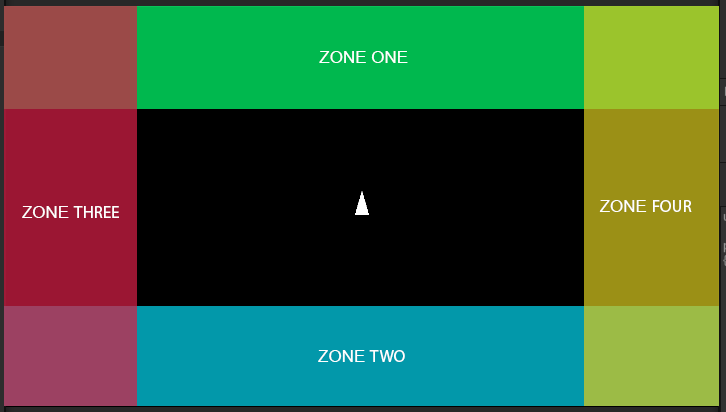
We can easily get these zones from the height and width of our screen. From our screen wrap tutorial, we know we can get the width and height of our screen by accessing the size of our orthographic camera. Lets make a new method called GetRandomAsteroidPosition() and get the height and width of our screen as local variables:
    void GetRandomAsteroidPosition()
    {
        float height = Camera.main.orthographicSize * 2;
        float width = (Camera.main.orthographicSize * 2) * Camera.main.aspect;
    }
We can then create a local Vector3 variable that will hold the random position and give an initial value of (0,0,0):
    void GetRandomAsteroidPosition()
    {
        float height = Camera.main.orthographicSize * 2 - 2;
        float width = (Camera.main.orthographicSize * 2 - 2) * Camera.main.aspect;
        Vector3 randomPosition = Vector3.zero;
    }
Next, since there are four zones we want to choose a random position. Let’s make a variable for a random number and use Random.Range to get a random value between 0 and 4. Note that when returning an integer with Random.Range the minimum value is inclusive and the maximum value is exclusive. Therefore, if we want the method to return a value of either 0, 1, 2, or 3, our method should look like this: Random.Range(0,4)
    void GetRandomAsteroidPosition()
    {
        float height = Camera.main.orthographicSize * 2 - 2;
        float width = (Camera.main.orthographicSize * 2 - 2) * Camera.main.aspect;
        Vector3 randomPosition = Vector3.zero;
        int randomZone = Random.Range(0, 4);
    }
Considering that each of our zones are a certain padding distance away from the edge of our screen, let’s also make a public global padding variable that we can adjust in our inspector. Let’s set it to an initial value of 3:
public class GameManager : MonoBehaviour
{
    public float asteroidPadding = 2;
//...
Within our GetRandomAsteroidPosition() method, we can then create 4 if/elseif statements that will check our random numbers:
    void GetRandomAsteroidPosition()
    {
        float height = Camera.main.orthographicSize * 2 - 2;
        float width = (Camera.main.orthographicSize * 2 - 2) * Camera.main.aspect;
        Vector3 randomPosition = Vector3.zero;
        int randomZone = Random.Range(0, 4);

        if(randomZone == 0)
        {

        }
        else if(randomZone == 1)
        {

        }
        else if(randomZone ==2)
        {

        }
        else if(randomZone == 3)
        {

        }
    }
Within each if statement we can then get the area of our zones. Zone 1 will be equal to randomZone 0 and so on:
void GetRandomAsteroidPosition()
{
    float height = Camera.main.orthographicSize * 2 - 2;
    float width = (Camera.main.orthographicSize * 2 - 2) * Camera.main.aspect;
    Vector3 randomPosition = Vector3.zero;
    int randomZone = Random.Range(0, 4);

    if(randomZone == 0)
    {
        float randX = Random.Range(-width/2, width/2);
        float randY = Random.Range(height / 2, height / 2 - asteroidPadding);
        randomPosition = new Vector3(randX, randY, 0);
    }
    else if(randomZone == 1)
    {
        float randX = Random.Range(-width / 2, width / 2);
        float randY = Random.Range(-height / 2, -height / 2 + asteroidPadding);
        randomPosition = new Vector3(randX, randY, 0);
    }
    else if(randomZone ==2)
    {
        float randX = Random.Range(-width / 2, - width / 2 + asteroidPadding);
        float randY = Random.Range(-height / 2, height / 2);
        randomPosition = new Vector3(randX, randY, 0);
    }
    else if(randomZone == 3)
    {
        float randX = Random.Range(width / 2 - asteroidPadding, width / 2);
        float randY = Random.Range(-height / 2, height / 2);
        randomPosition = new Vector3(randX, randY, 0);
    }
}
Reading this code closely you will notice that this code is calculating a random number between the width and height of each zone by using our screen height, screen width and padding variable. For example, Zone 1 is at the top of our screen. The width of that zone is between the the positive and negative value of half our overall width. Meaning if the width of our screen was 10, the bounds would be from -5 to 5. The height of this zone would be a range from half the height our screen to half the height our screen minus our padding value. As an example, if the height of our screen was 8, the height of this zone would be between 4 and 2.
Therefore, to find a random position in Zone 1, we need a random x value between -5 and 5, and a random y value between 2 and 4. Since position is a Vector3, we can provide the z value of our random position with a value of zero.
Returning Values
Finally, we can make our method return our randomPosition. We first need to change the return type of our method from void to Vector3. This indicates to the computer that this method will return a Vector3 value. C# is an explicit language which means we have to be explicit about what types of values a method is returning.
Vector3 GetRandomAsteroidPosition()
{
Then, at the bottom of our method, we can add:
return randomPosition;
As a refresher, if a method returns a value, when we call this method we will get a value. In our case, when we call GetRandomAsteroidPosition() we will get back a Vector3 value. This is similar to when we call Random.Range() we get a random value back.
Our final method should look like this:
    Vector3 GetRandomAsteroidPosition()
    {
        float height = Camera.main.orthographicSize * 2 - 2;
        float width = (Camera.main.orthographicSize * 2 - 2) * Camera.main.aspect;
        Vector3 randomPosition = Vector3.zero;
        int randomZone = Random.Range(0, 4);

        if(randomZone == 0)
        {
            float randX = Random.Range(-width/2, width/2);
            float randY = Random.Range(height / 2, height / 2 - asteroidPadding);
            randomPosition = new Vector3(randX, randY, 0);
        }
        else if(randomZone == 1)
        {
            float randX = Random.Range(-width / 2, width / 2);
            float randY = Random.Range(-height / 2, -height / 2 + asteroidPadding);
            randomPosition = new Vector3(randX, randY, 0);
        }
        else if(randomZone ==2)
        {
            float randX = Random.Range(-width / 2, - width / 2 + asteroidPadding);
            float randY = Random.Range(-height / 2, height / 2);
            randomPosition = new Vector3(randX, randY, 0);
        }
        else if(randomZone == 3)
        {
            float randX = Random.Range(width / 2 - asteroidPadding, width / 2);
            float randY = Random.Range(-height / 2, height / 2);
            randomPosition = new Vector3(randX, randY, 0);
        }

        return randomPosition;
    }
Spawning Asteroids at a Random Position
Now that our GetRandomAsteroidPosition() returns a random Vector3, we can use this method inside of our Instantiate method within SpawnAsteroids. We can also provide the Instantiate method with Quaternion.identity to keep the same rotation our asteroid has in our prefab. Later in the course we can tweak this value to give every asteroid a random rotation when they spawn.
    void SpawnAsteroids()
    {
        for (int i = 0; i < asteroidsToSpawn; i++)
        {
            Instantiate(asteroid, GetRandomAsteroidPosition(), Quaternion.identity);
        }
    }
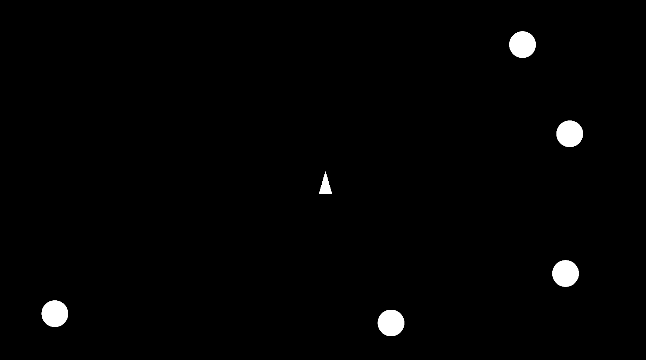
When we play our game, we should see 5 asteroids and the player spawn in the scene:
At the end of this tutorial our GameManager script should now look like this:
using UnityEngine;

public class GameManager : MonoBehaviour
{
    public static GameManager instance;

    public GameObject player;
    public GameObject asteroid;

    int asteroidsToSpawn = 5;
    public float asteroidPadding = 2;

    private void Awake()
    {
        if (instance != null && instance != this)
        {
            Destroy(this);
        }
        else
        {
            instance = this;
        }
    }
    void Start()
    {
        StartGame();
    }

    void Update()
    {

    }

    void SpawnPlayer()
    {
        Instantiate(player, Vector3.zero, Quaternion.identity);
    }

    void SpawnAsteroids()
    {
        for (int i = 0; i < asteroidsToSpawn; i++)
        {
            Instantiate(asteroid, GetRandomAsteroidPosition(), Quaternion.identity);
        }
    }

    void StartGame()
    {
        SpawnPlayer();
        SpawnAsteroids();
    }

    Vector3 GetRandomAsteroidPosition()
    {
        float height = Camera.main.orthographicSize * 2 - 2;
        float width = (Camera.main.orthographicSize * 2 - 2) * Camera.main.aspect;
        Vector3 randomPosition = Vector3.zero;
        int randomZone = Random.Range(0, 4);

        if(randomZone == 0)
        {
            float randX = Random.Range(-width/2, width/2);
            float randY = Random.Range(height / 2, height / 2 - asteroidPadding);
            randomPosition = new Vector3(randX, randY, 0);
        }
        else if(randomZone == 1)
        {
            float randX = Random.Range(-width / 2, width / 2);
            float randY = Random.Range(-height / 2, -height / 2 + asteroidPadding);
            randomPosition = new Vector3(randX, randY, 0);
        }
        else if(randomZone ==2)
        {
            float randX = Random.Range(-width / 2, - width / 2 + asteroidPadding);
            float randY = Random.Range(-height / 2, height / 2);
            randomPosition = new Vector3(randX, randY, 0);
        }
        else if(randomZone == 3)
        {
            float randX = Random.Range(width / 2 - asteroidPadding, width / 2);
            float randY = Random.Range(-height / 2, height / 2);
            randomPosition = new Vector3(randX, randY, 0);
        }

        return randomPosition;
    }
}