Updating Text
Now that we have text within our scene, we can write some code so that our text updates as our lives and score changes.
Add TMP
As a first step, we need to decide where to write the code to handle updating our text. There are a few options here, such as creating a separate TextUpdater class, however, since our GameManager is currently handling both our lives and score it might be best to write our text update code within the Game Manager script.
The first step to creating this script is adding the Text Mesh Pro namespace to our Game Manager script. We can do this by adding the using TMPro to the top of our script:
using System.Collections.Generic;
using UnityEngine;
using UnityEngine.SceneManagement;

//Adding TMPro
using TMPro;
//

public class GameManager : MonoBehaviour
{
///...Rest of Script
Create Text Variables
After adding the TMPro namespace, we can then create two global variables to hold our Score Text and Lives Text. These variables will be of TextMeshProUGUI. We can name them scoreDisplay and livesDisplay. Let’s make them public so we can connect our TextMeshPro components to our Game Manager in the inspector:
public TextMeshProUGUI scoreDisplay;
public TextMeshProUGUI livesDisplay;
Updating Score
For both our Score and Lives we could choose to update these text every frame of our game. To do this, we could write some code to update these texts within our Update() method. However, since we know exactly where our score and lives values are changing, we can instead write some code within these methods.
For our score, we currently have a method called AddScore() within our GameManager class that is called by asteroids to update the score of the game. Within this method, after we update our score, we can change the value of our text.
To change the value of our text, we first need to get access to the text variable of our TextMeshProUGUI component. To do this, we can call .text on our scoreDisplay variable:
public void AddToScore(int scoreValue)
{
    score += scoreValue;
    //getting text value of TMPro component
    scoreDisplay.text =
}
As for what value to provide for our text, we currently know that our text within Unity is written as “SCORE: 000000”. Theoretically we could split this text into two TMPro components and just update the number value, however, since we are working with a simple scene we can instead incorporate the “SCORE: “ value when we update our text. Let’s first set our .text equal to "SCORE: " :
public void AddToScore(int scoreValue)
{
    score += scoreValue;
    scoreDisplay.text = "SCORE: "
}
We could then concatenate this string by using the + symbol and our score variable:
public void AddToScore(int scoreValue)
{
    score += scoreValue;
    scoreDisplay.text = "SCORE: " + score;
}
As a note, since we are concatenating our string by adding score to an existing string value of "SCORE: ", C# with automatically convert the value of score to string. If we for example were to just write:
scoreDisplay.text = score;
``
We could receive an error as score is an int and not a string. In these situations, we can use the method ToString() to convert values into strings. We could add this to our current code to remind ourselves that score is being converted into a string:
public void AddToScore(int scoreValue)
{
    score += scoreValue;
    scoreDisplay.text = "SCORE: " + score.ToString();
}
Updating Lives
Updating our Lives text is the same as updating our score. We can use a similar line of code within our PlayerDeath() method to update the lives value on the players screen:
public void PlayerDeath()
{
    playerLives--;

    //NEW LINE
    livesDisplay.text = "LIVES: " + playerLives.ToString();

    if (playerLives == 0)
    {
        SceneManager.LoadScene(SceneManager.GetActiveScene().buildIndex);
    }
    else
    {
        Destroy(currentPlayer);
        SpawnPlayer();
    }
}
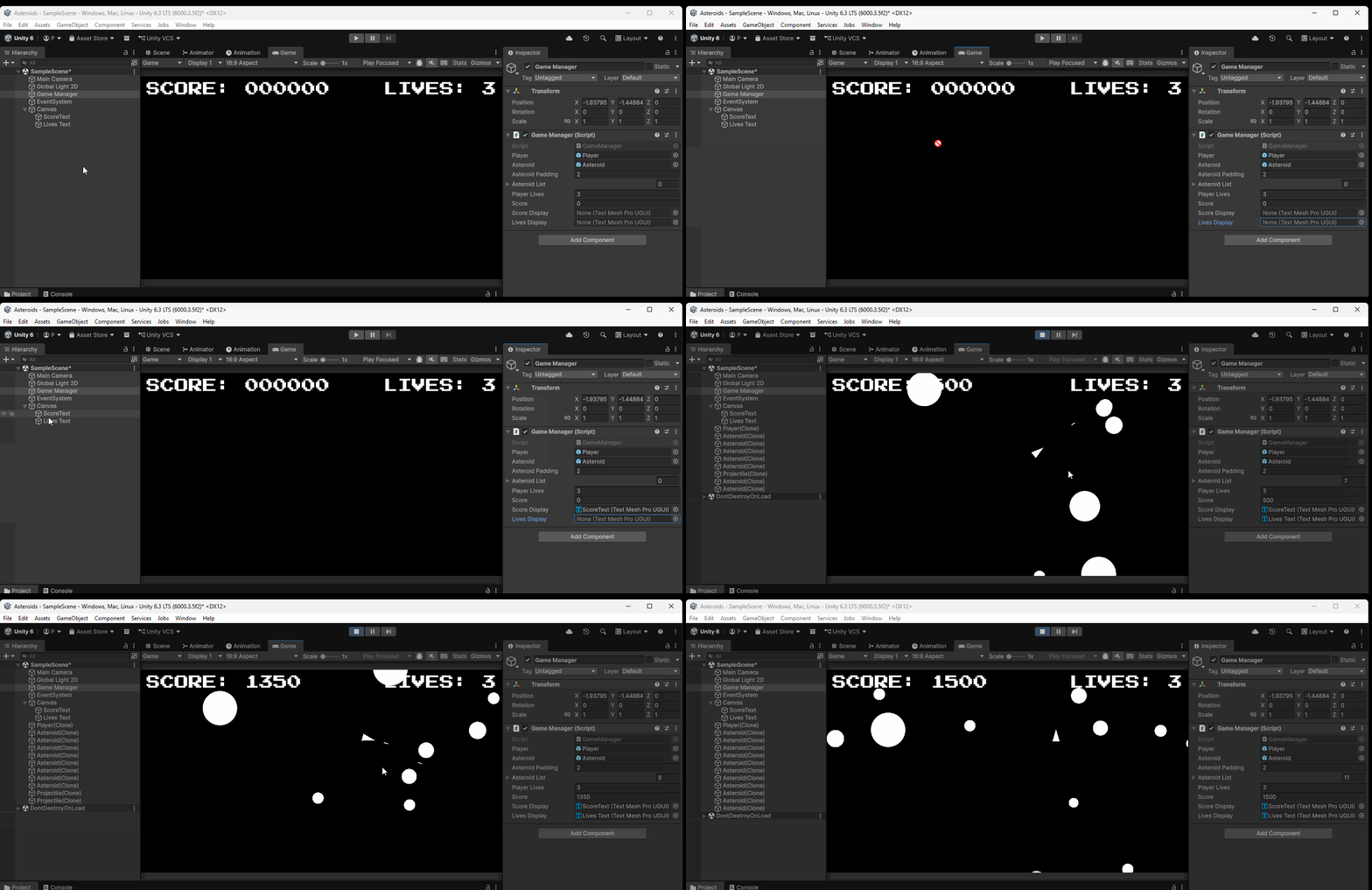
Testing our Text
Within Unity we can then assign our Score Text and Lives Text to the scoreDisplay and livesDisplay variables in our Game Manager, and then test our scene: